
Description: This QRG should be referenced when updating a Purchase Price or Original Purchase Price on the Property or Project tab
Primary Department Supported: Underwriting, Servicing
Super Powers Needed? – NO
Developer Support Needed? - NO
Context and Common Situations
-
This request is submitted when Original Purchase Price or Purchase price in LMS are not matching what the loan agreement says it should be. Often caught during data-clean ups.
Important Considerations & Best Practices
-
A loan should only have one - Purchase Price OR Original Purchase price - not both. When a loan has both, the incorrect value will need to be cleared out.
- Most often, this comes from SPA and needs to be corrected there as well.
- These fields are shown on the Project tab but updated/housed on the Property level
Instructions: (written instructions, screenshots and video demos)
- Navigate to the Property tab of the loan and ensure that both Original Purchase Price and Purchase price are selected in the table view. If there is a value both fields, this needs to be corrected.
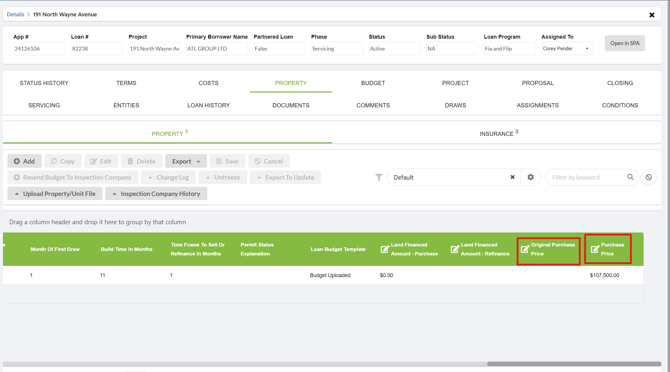
- You can remove the Purchase Price or Original Purchase price from the property table, if you know which field needs to be removed.
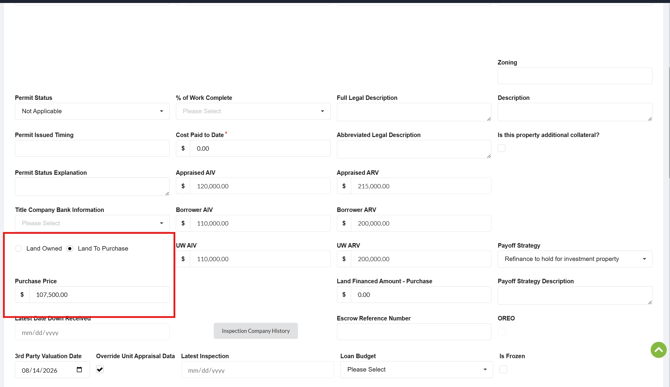
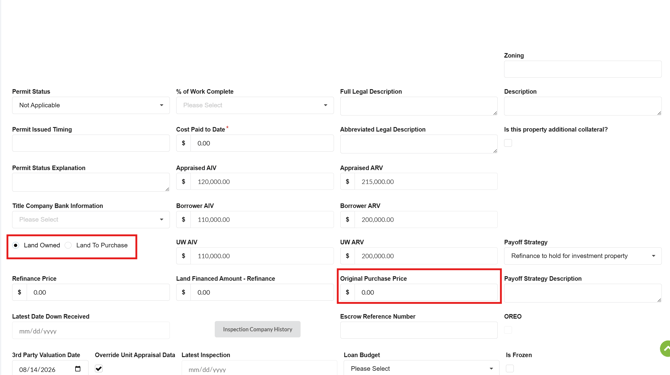
- If you're unsure which field is accurate, click into the property and scroll down to Land Owned or Land to Purchase - this selection determines which field you'll be able to see.
- Land to Purchase = Purchase Price
- Land Owned = Original Purchase Price
- Select the other land type to zero out the field and then toggle back to the correct selection. Update the price and save and close.
Video Walkthrough: