
Primary Department Supported: Servicing/ Accounting
Description: How and When to Void, and/or, Credit Fees from the Loan History
Super Powers Needed? - YES
Developer Support Needed? - NO
Context and Common Situations
- Fees and Charges are voided and credited when added in error, no longer needed or as part of broader, multi - step corrections to loan history.
- You can do a Full Void, or Credit the Fee/Charge back to the Loan for a specific date depending on timing and needs.
- Void – Void charges on the loan history for items charged on the same business day as the request being made.
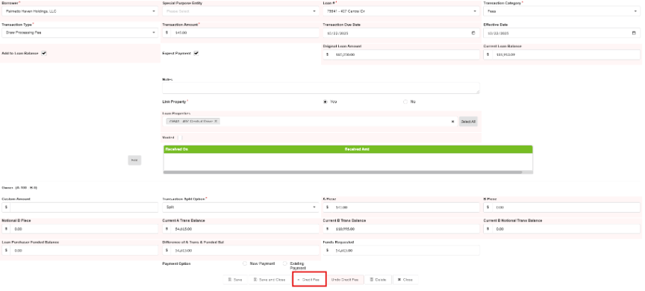
- Credit Fee (to match the charge date) – Uses the "Credit Fee" button on the details screen for the charge: Applies the credit effective as of the same day of the original charge.
- Credit Fee (with the current month start date) – Uses the "Credit Fee" button on the details screen for the charge: Applies the credit effective as of the first date of the current month.
Important Considerations & Best Practices
- Confirm with the requester if this is a full void or a credit: Obtain approval and confirmation from Accounting Leadership as needed.
- For requests that come from departments other than accounting:
- Always include and get approval from accounting leadership (Helen Yoon, Richa Pandey, Megan McKell, Lisa Aplin) for requests that involve voiding/ crediting fees charged in previous months or not in the current business day.
- For credits - always ask/confirm with accounting leadership the effective date of the credit
- For requests that come from accounting members:
- Approval from accounting leadership (Helen Yoon, Richa Pandey, Megan McKell, Lisa Aplin) is needed requests that involve voiding/ crediting fees charged in previous months.
- For credits - always ask/confirm with the requester or leadership the effective date of the credit
- Fees and Charges applied in previous months are almost always credited back to the loan: Confirm with accounting leadership for the best effective date to use to avoid issues with previous interest calculations.
- Review the Loan History for payments made towards the charge.
- For fees and charges that have been paid: The payment will also need to be voided, and the funds re-applied or allocated elsewhere. Confirm with accounting where these funds should go.
Instructions
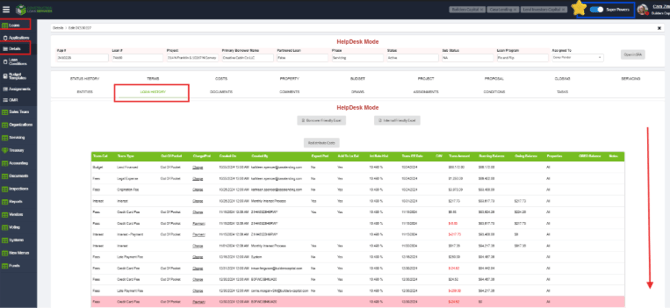
1. Full Void:From the LMS Menu:
- Select Loans
- SelectDetails
- SelectLoan History
- Enable Super Powers
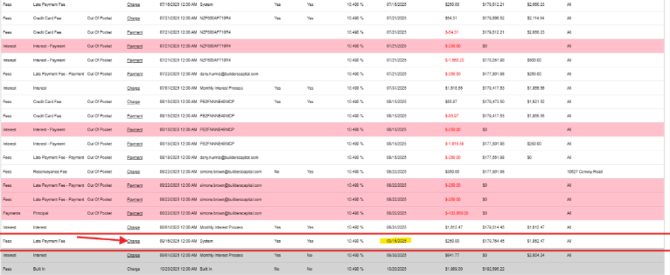
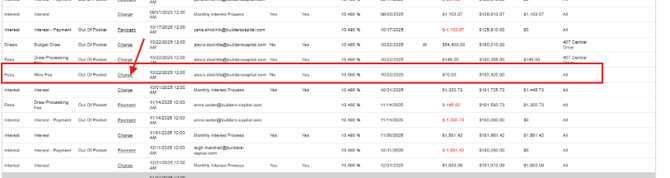
- Locate and Click into the Charge
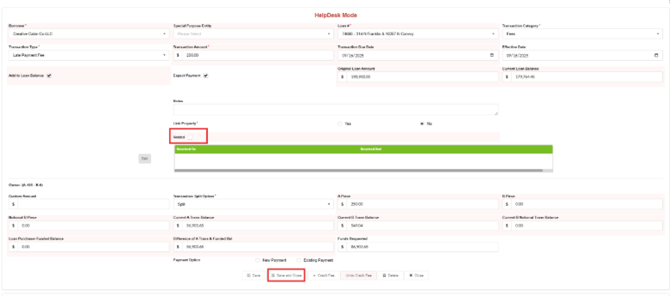
- Check the Voided checkbox
- Click Save & Close
2. Credit Fee/Charge
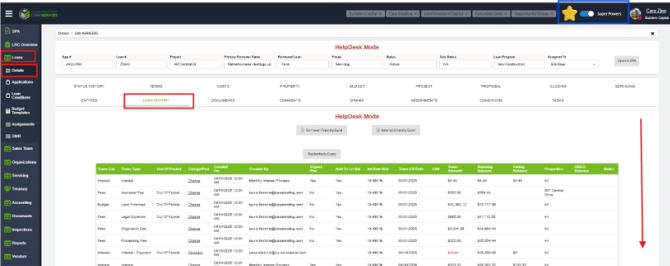
From the LMS Menu:
- Select Loans
- Select Details
- Select Loan History
- Enable Super Powers
- Click into the Charge
- Click the box “Credit Fee”
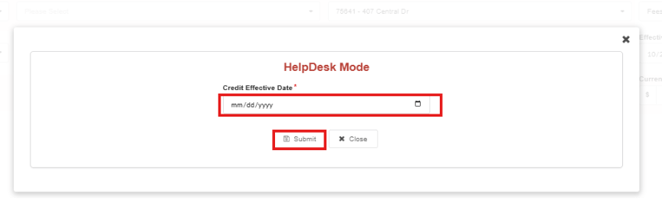
- Enter the effective date of the credit
- Fees/Charges added in current month and as directed by accounting (use same date of the charge)
- Fees Charged in previous month and as directed by accounting (use date provided/confirmed by accounting)
- Click Submit
Validation and Troubleshooting
-
Validate Void: Refresh and Review the Loan History for the charge voided; Voided entries will display in pink
-
Validate Credits: Refresh and Review the Loan History to show the credit and effective date
-
If the void box won’t mark - Super Powers are enabled before clicking into the charge
-
“Fee cannot be credited error”: An error message occurs if the fee is linked to a loan payment – locate the loan payment, confirm with accounting as needed for next steps (likely need to void the loan payment, credit the fee and re-allocate the funds)