Primary Department Supported: Servicing /General LMS User Support
Super Powers Needed? - NO
Developer Support Needed - NO
Common Situations
You may need to update a contact’s Organizations or Business Roles when:
- The individual needs to be associated with a different borrower entity
- The individual needs to be associated with a builder, vendor, or another related party
- You are trying to add the individual to a loan under the Entities tab, but their name is not showing with the correct Business Roles (e.g., Borrower Statement, Courtesy Reminders)
Important Considerations & Best Practices
- The Organizations and Business Roles linked at the contact level determine where and how the contact appears throughout LMS—especially when associating people with loans.
Instructions:
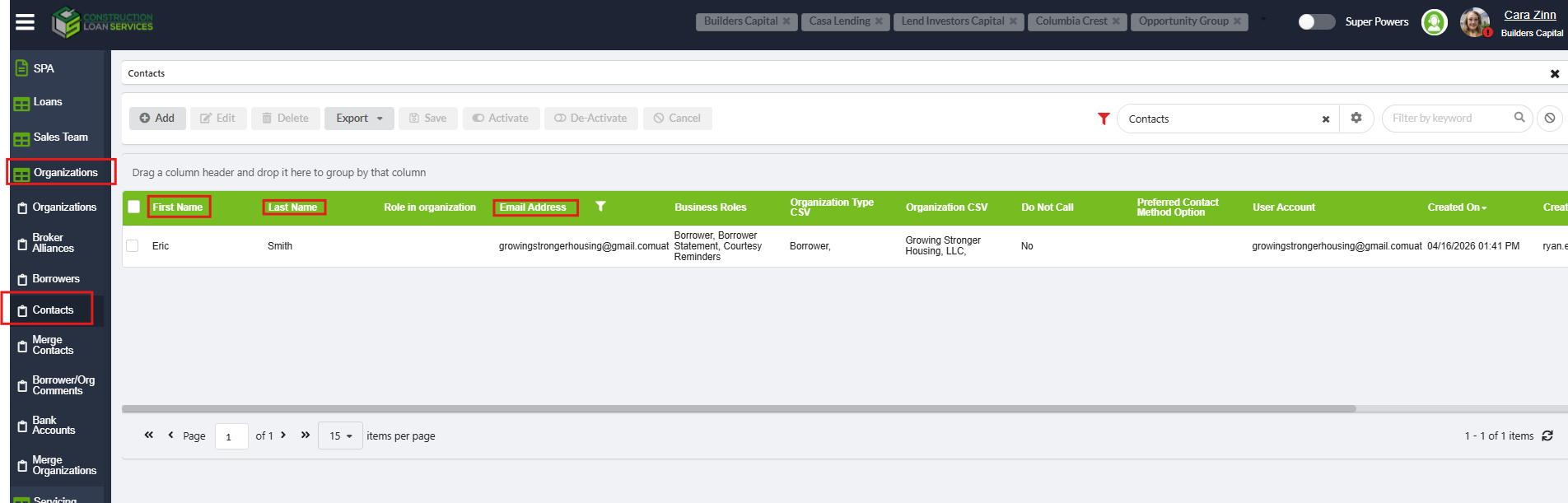
Locate the Contact you want to edit
In the LMS Menu:
- Select Organizations → Contacts
- Locate Contact and click to open details
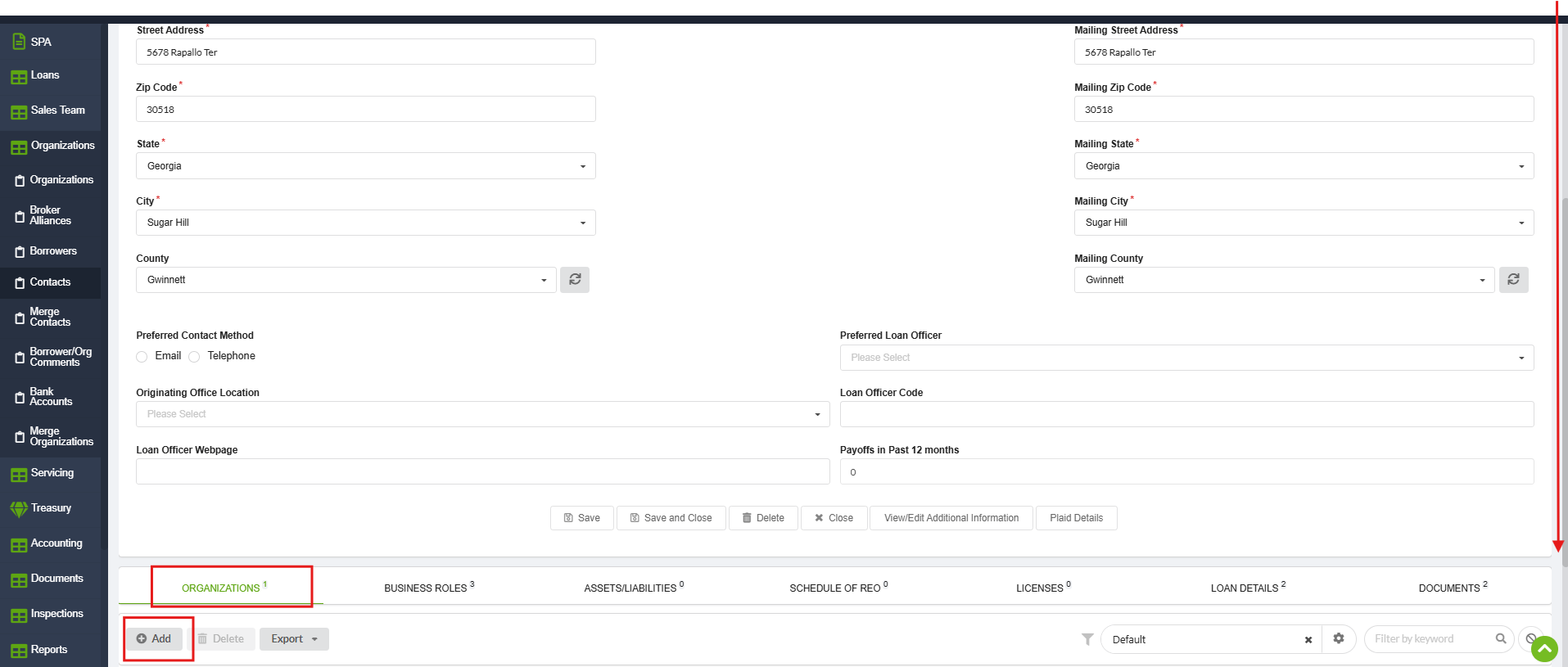
To Add or Modify Organizations
From within the Contact Details- Select the Organizations tab.
- Click Add.
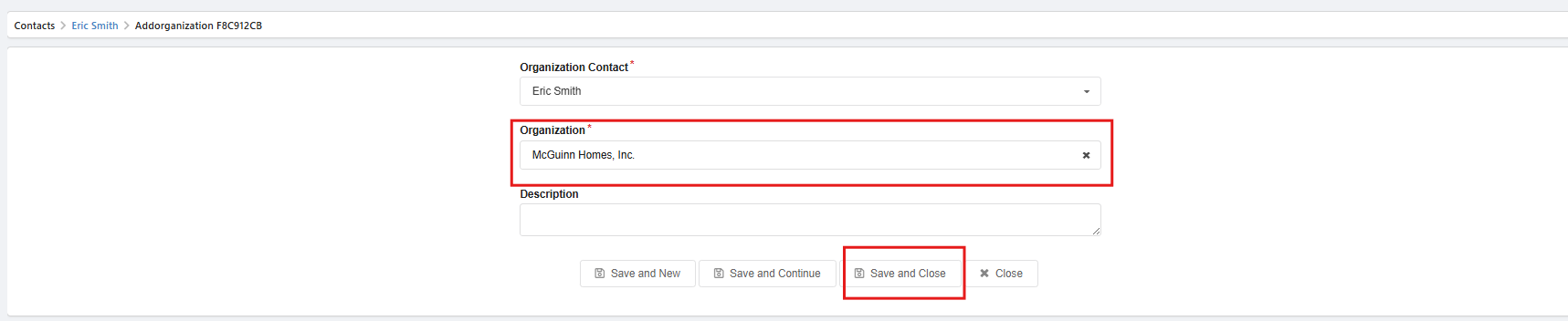
- Search for the needed Entity/Organization.
- Click Save and Close.
To Add or Modify Business Roles
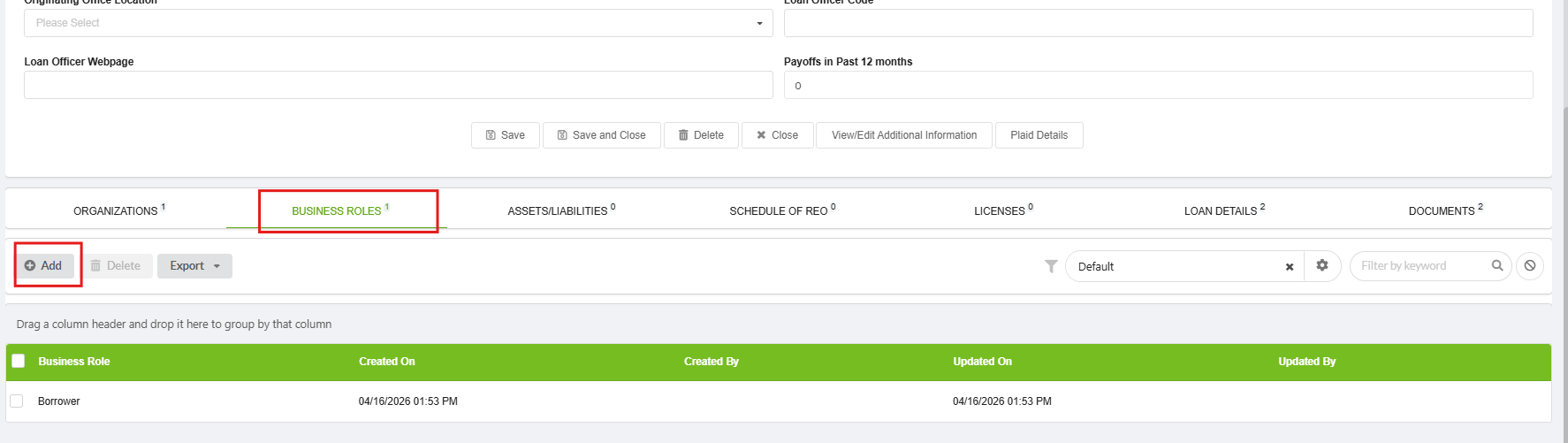
From within the Contact Details- Select the Business Roles tab.
- Click Add.
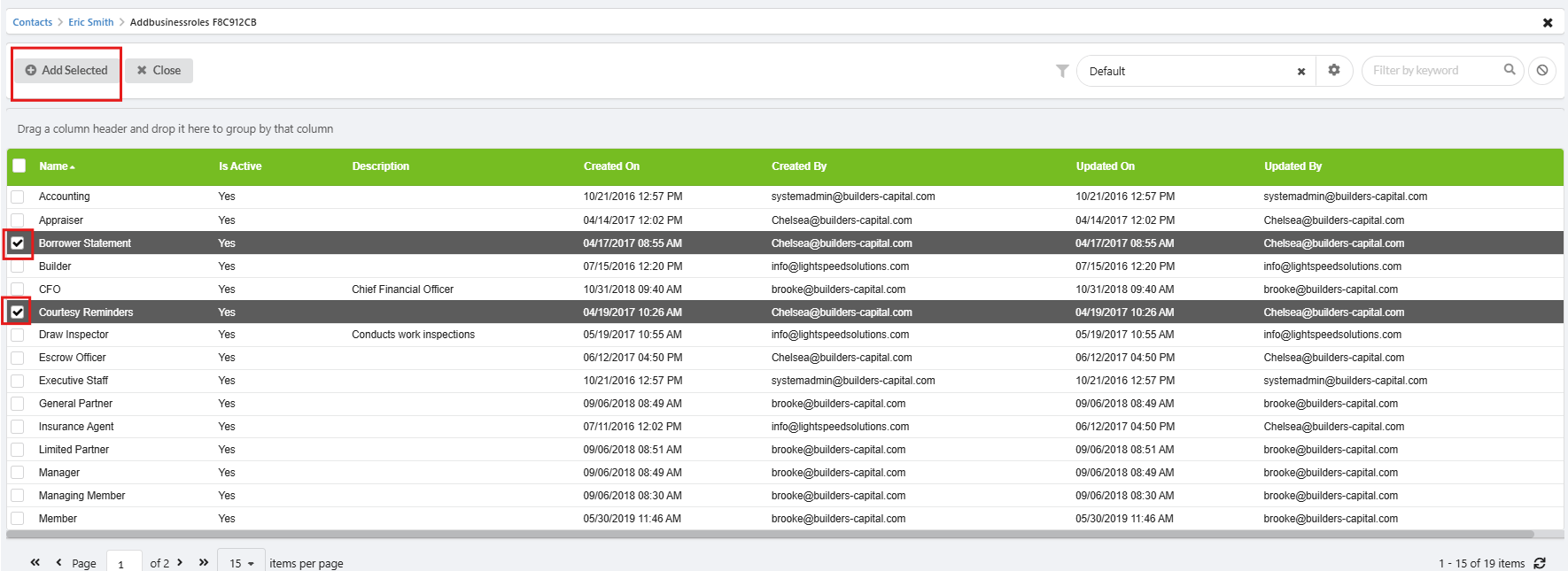
- Search or scroll to find the needed role.
- TIP: Expand the view at the bottom to see additional role options.
- Checkmark one or multiple roles.
- Click Add Selected.
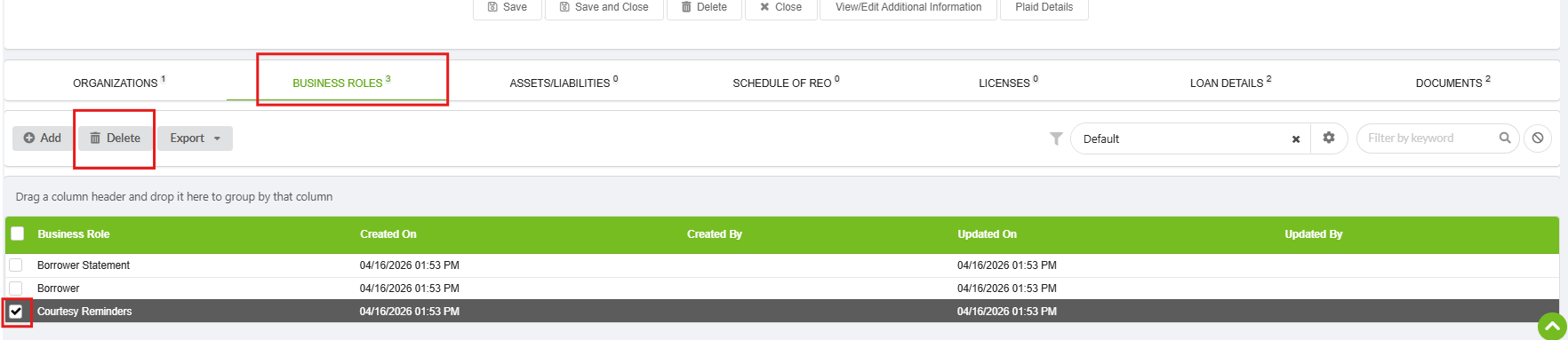
To Delete or Remove an Organization or Business Role
- Locate your contact and open the appropriate tab (Organizations or Business Roles).
- Checkmark the item you want to remove.
- Click Delete.