
Primary Department Supported: Servicing/Accounting
Description: How to Update the Expect Pay and Add to Loan Balance Flags on Charges/Transactions in LMS
Super Powers Needed? - YES
Developer Support Needed? - NO
Context and Common Situations
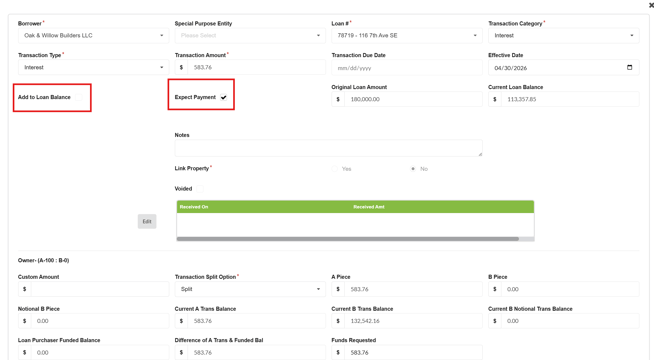
- Requests to update Add to Loan Balance or Expect Pay flags usually come when loan history calculations appear incorrect. If the appropriate transaction flags are not marked, the Running Balance or Owing Balance on the loan may reflect inaccurate amounts.
- Add to Loan Balance - adds to or subtracts from the Running Balance on the Loan History.
- Expect Pay - Indicates whether payment is expected for a specific charge and updates the Owing Balance accordingly.
Important Considerations & Best Practices
When multiple adjustments are needed, update each charge individually and review balances after each save
Instructions:
1. To Mark “Add to Loan Balance” or “Expect Pay Flag” as YES
From LMS Menu:
- Select Loans
- Select Details (locate loan/ open)
- Select Loan History
- Turn on Super Powers
- Locate the charge and click Charge to open details.
- Check mark the Box to set the flag as YES
- Click Save and Close.
2. To Mark “Add to Loan Balance” or “Expect Pay Flag” as NO
From LMS Menu:
- Select Loans
- Select Details (locate loan/ open)
- Select Loan History
- Turn on Super Powers
- Locate the charge and click Charge to open details.
- Uncheck Box to set the Flag as NO.
- Click Save and Close.
Validation and Troubleshooting
- Validate that the box was marked by reviewing the Loan History:
- Expect Pay AND Add to Loan Balance will have a YES or NO indicator in the column
- Changes didn’t save? - Ensure Super Powers were on
Video Walkthrough: