Primary Department Supported: Internal PS/All
Description: How to de-activate LMS user accounts for user's no-longer employed or need access to the system
Super Powers Needed? – NO
Developer Support Needed? - NO
Context and Common Situations
HR will sends over requests to de-activate individuals from LMS.Important Considerations & Best Practices
-
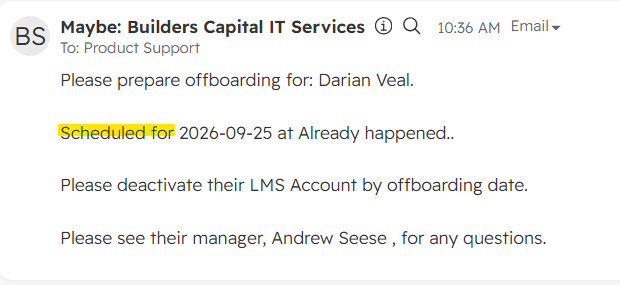
Pay attention to the Scheduled for section of the request: Don't de-activate anyone until the date and time listed. You may de-activate if this sections implies the individual is already gone.
- Do not remove anyone's Business Roles or User Account Roles
Instructions:
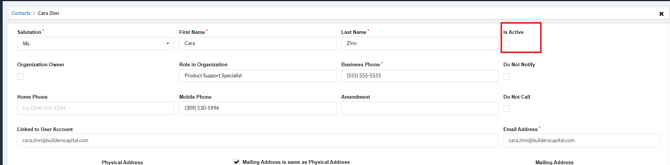
1. Mark the Contact Card Inactive
-
From LMS Menu:
-
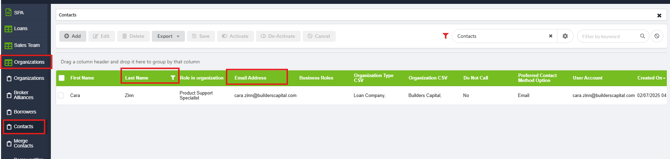
Select Organizations
-
Select Contacts
-
Filter or Locate by name or email - click to open details
-
Uncheck the box for "Is Active"
-
Save and close
2. Deactivate and Lock User Account
From LMS Menu
-
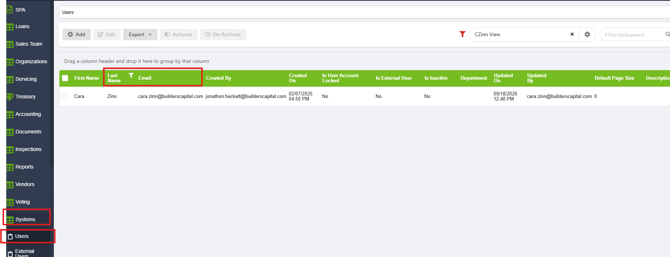
Select Systems
-
Select Users
-
Filter by name or email - click to open details
-
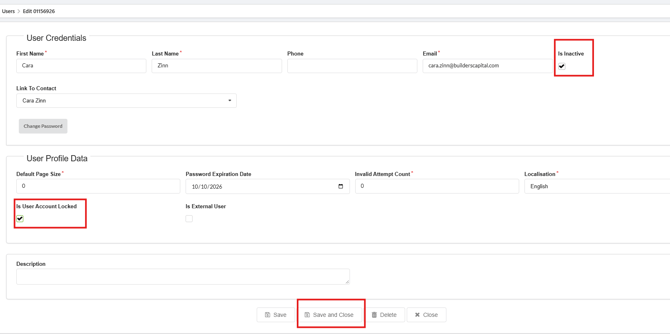
Checkmark "Is Inactive"
-
Checkmark "Is UserAccount Locked"
-
Save and Close