
Primary Departments Supported: Servicing/Accounting
Description: Manually post an Interest Reserve payment, link it to the correct loan charge, and update the Current Interest Reserve balance
Super Powers Needed? - YES
Developer Support Needed - YES
Common Situations
- A requester needs an Interest Reserve Payment manually posted to the Loan History.
- When interest reserve conditions are met after the traditional posting dates
- Special permission has been provided to utilize interest reserve
Important Considerations & Best Practices
- Because the payment is posted manually, the Current Interest Reserve Balance (located on the Servicing Tab) will also need to be updated.
- Developers will Post the Payment and link it to the charge; Product Support will update the Current Interest Reserve Balance
- Always have accounting leadership review and approve the effective dates of manual IR payment.
- While MOST IR payments posted by the system match the effective date of their charge, accounting may require that the effective date of the manual payment have a different date
Instructions
1. Submit a task to the developers for the payment(s) that need posted and linked
Asana Task Guidelines:
-
Task Name (should match the name of the HubSpot Ticket): An easy way to name the ticket for identification (include loan number or numbers when applicable)
- Tip: Change the Name of the HubSpot Ticket before marking it for Dev Support
-
Developer Description: Where/What: Specific instructions ask the developer for exactly what is needed and should always include screenshots of exactly what items you are referring to
-
Repro/Pathaway: Step by step instructions for the developers to get to the section in LMS where the changes are to be completed.
NOTE: There should always be URLs included in the description or in the Repro/Pathway that direct the developers to the correct location in LMS
Dev Ticket Visual:

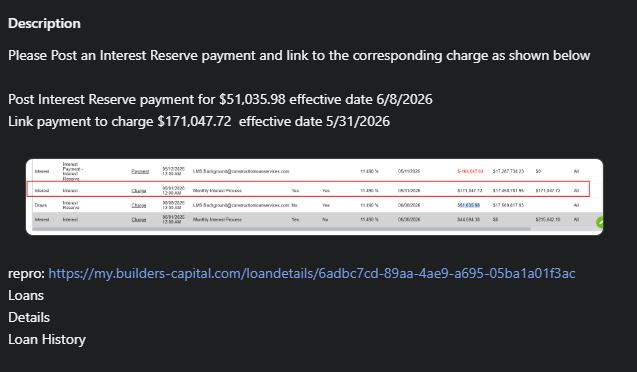
2. Validate Developer Changes in the Loan History
-
Go to the Loan History in question and make sure the payment has posted
-
Click into the payment for details and make sure the correct transaction linked/ listed
3. Update Current Interest Reserve Balance on the Servicing Tab
From LMS Menu:
- Select Loans
- Loan Details
- Servicing
- Enable Super Powers
- Click Edit
- Subtract the amount of the payment posted by the devs from the current interest reserve balance – enter that amount into the Current Interest Reserve field.
- Click Save and Close
Dev Ticket Template:
Task Name: [Loan #] - Post Interest Reserve Payment and Link to Charge
Description:
Please Post an interest reserve payment and link to the corresponding charge as shown below:
- Interest Reserve Payment for $xxx.xx, effective date MM/DD/YY
- Link to corresponding charge for $xxx.xx, effective date MM/DD/YY
{screenshot of the Loan History that highlights the corresponding charge)
Repro/Pathway: {URL/Link to the Loan History of the loan}
Loan
Details
Loan History