
Primary Department Supported: Product Support Audit
Description: Monthly audit to verify that all variable rate loans have automatically updated to reflect the new monthly SOFR rate
Super Powers Needed? – NO
Developer Support Needed? NO
Context and Common Situations
At the end of every month the SOFR Rate, also referred to as Variable Rate Index is updated and the LMS system then applies that new Index to the Adjustible Rate Loans. This value impact the calculation of each loan's current interest rate.Important Considerations & Best Practices:
-
Spreadsheet Filtering Tips:
-
remove/ hide any extra rows that have information that’s not necessary for this audit (most important ones are any interest rate related columns & any internal assignees, in case you need to reach out with questions)
-
add a notes column and highlight columns/rows once you’ve completed auditing the loan, so you don’t get lost
- Prioritize and Filter the active loans first as these are the ones that will likely need an urgent adjustment by the Devs
-
- Communicate with external departments as needed through the HubSpot ticket created for this month's audit
Instructions:
1. Create HubSpot Ticket for the Audit
2. Use the BC Interest to make sure the SOFR rate is calculating correctly BC Interest Calculator
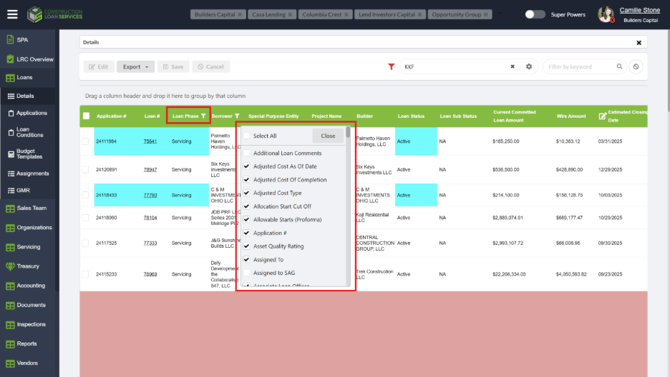
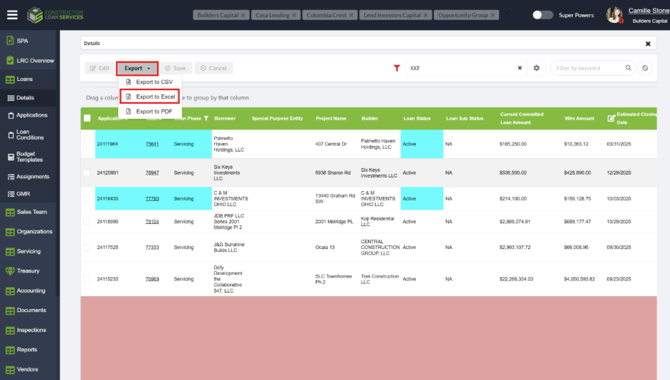
3. Pull a list of all Adj Rate loans -- From Loan Details
- Loans
-
Details
- Filter by Loan Phase IS “Servicing”
- Filter by Rate Type "Adj Rate" under the rate type column
- Ensure that Interest Rate Type Current is unhidden from the column view
- Ensure Margin, Floor, Ceiling, Variable index rate are all unhidden (they should be)
- Ensure Variable Index column is visible and that you can see the words "Secured overnight financing rate"
- Export to Excel
- Tip – to verify the columns you need aren’t hidden, right click on any of the filter buttons to view the pop out
4. Open and Filter Spreadsheet
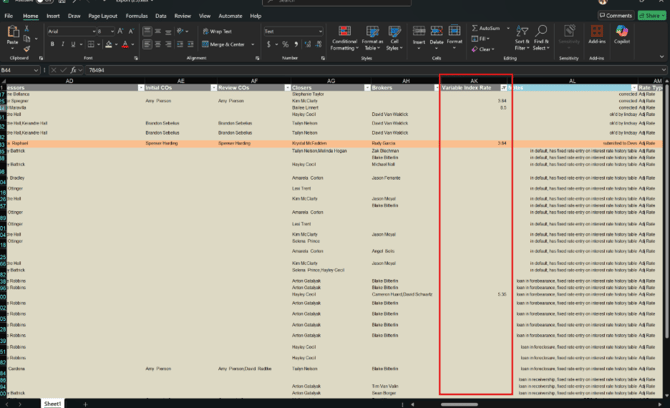
Filter sheet by Variable Index Rate
-
Unselect the most recent rate to remove them from your view. This will leave you with any loan in LMS marked as Adj Rate but with an incorrect rate.
-
-
Best practice – remove/ hide any extra rows that have information that’s not necessary for this audit (most important ones are any interest rate related columns & any internal assignees, in case you need to reach out with questions
-
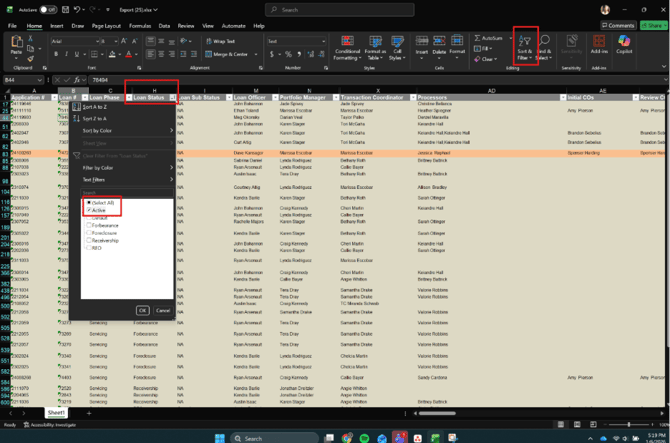
- Filter sheet by Loan Status
-
All Active loans should have the newest rate. If this rate is missing or incorrect, we’ll need to investigate.
- Best practice – Filter so you’re only the active loans first as these are the ones that will likely need an urgent adjustment by the Devs
-
-
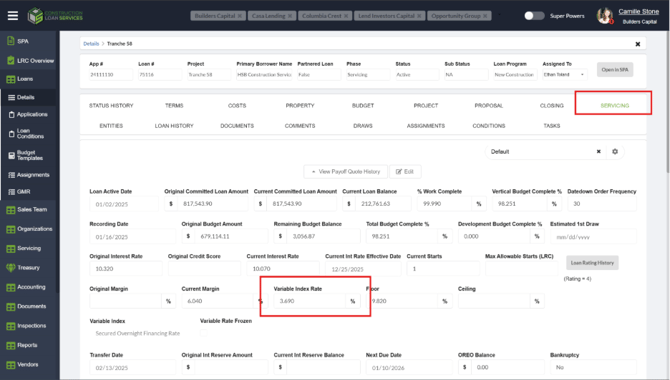
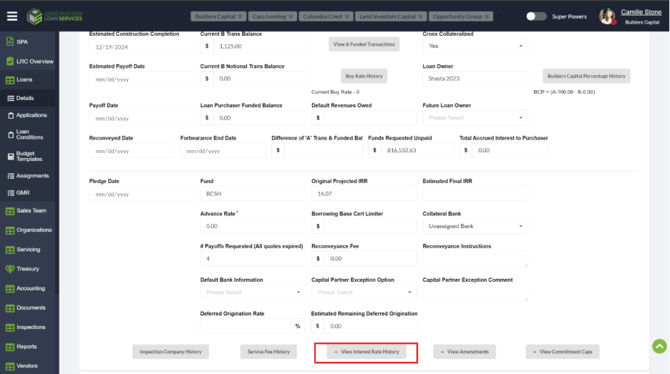
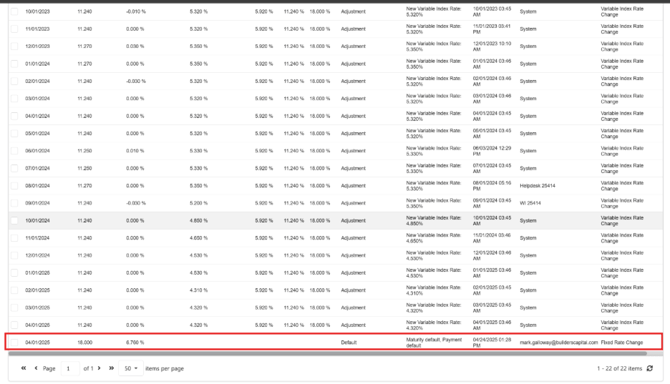
Review Loans in all other statuses: These should be reviewed on the Servicing Tab and have an entry in the Interest Rate History Table reflecting ‘Fixed Rate Change’ and a note with more details (example: Default) – if this note is here, the loan is okay to not have the most recent rate.
-
Best practice – add a notes column and highlight columns/rows once you’ve completed auditing the loan, so you don’t get lost
-
IV: Notate Results of Audit:
- Notate the Results of the audit in the log provided in this document – Include any relevant notes comments and links to tickets
- Post a verbal the confirmation of audit’s completion in the Teams Chat
- Resolve HubSpot Ticket - Include any relevant screenshots and resolution notes
Validation and Troubleshooting:
- When you find an active loan that doesn’t have the updated variable rate, double check the interest rate history table and ensure a SOFR entry doesn't have a Fixed Rate Change entry erroneously. If there is a fixed rate entry in the table but the loan is active, we’ll need to
- Add a comment to the incorrect entry to notate the error
- Add an additional entry for the new month: with the correct rate by updating current interest rate on servicing tab using the correct calculation
- Verify that all entries (in all statuses) are showing the SOFR rate and not the WSJ prime rate. If there are WSJ entries, they need to be switched on the servicing tab and the same steps followed as above. (rarely applies)
- There are a handful of loans on the TRC process that will show up in this report. Run these by Lindsay & Servicing (Jennie Drake) to verify that we still need to take no action for these loans. (rarely applies)
AUDIT LOG – Notate the results of the audit here; include links to any ticket or tasks created
|
Date |
Results |
Tickets/Tasks/Resolution Notes |
Completed By |
|
03/02/26 |
No missing changes |
N/A |
CZ |
|
04/6/2026 |
|
Asana Ticket to fix ALL SOFR Index Rate: URGENT - Retrigger Monthly Interest Rate Process - Adj Rate Loans Asana Ticket to Fix Specific Loans after the SOFR was re-triggered: URGENT 79909 & 79910 - Update Variable Index Rate
|
CZ |
|
|
|
|
|
|
|
|
|
|
|
|
|
|
|
|
|
|
|
|
|
|
|
|
|
|
|
|
|
|
|
|
|
|
|
|
|
|
|
|