
Primary Department Supported: Product Support
Description: Monthly audit that compares the number of loans in Servicing to the borrower statements generated in LMS; Includes testing statement retrieval in the borrower portal; Includes a review of the LMS Email Box for borrower statement email notifications
Super Powers Needed? - NO
Developer Support Needed? - NO
Context and Common Situations:
Product Support will review and compare all the Borrower Statements generated across all loans and test a statement inside a borrower’s portal to ensure they are retrievable.
Product Support will also review the LMS email box to check the status of outgoing monthly borrrower statement emails
Important Considerations & Best Practices
Create a HubSpot Ticket for the Monthly Audit - Ticket Name should Identify the Month and The Audit being performed - This allows for proper tracking of issues, corrections and input from outside departments if needed
Use good filters to identify the loans in LMS that would qualify for having a monthly statement
Always Test a Loan in servicing to make sure portal users can download their statements
Instructions:
1. Start a HubSpot Ticket for Audit Tracking - Name this ticket with the previous month and the title of the Audit
-
(ex. June Monthly Audit Borrower Statements)
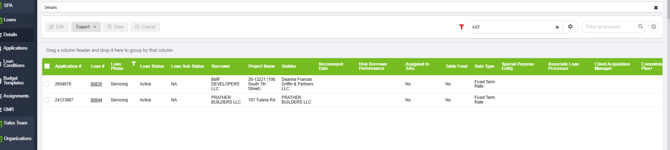
2. Compare and Review LMS Loan Details Table with Borrower Statements Generated
To Review Loan Details Table for all loans in Servicing
From LMS Menu:
- Select Loans
- Loan Details
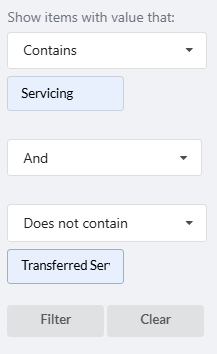
- Set a filter on the Loan Phase column to be Is Equal to “Servicing”
3. Locate all Borrower Statements Generated
From LMS Menu:
- Select Documents Tab
- Select Documents
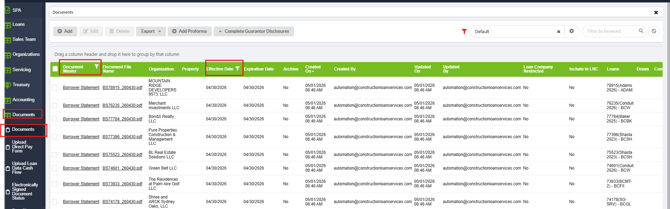
- Filter the Document Master Column to Contains "Borrower Statement"
- Filter by effective date "Last Day of the prior month"
4. Test Statement Retrieval at the Portal Level
From LMS Menu:
- Select Loans
- Loan Details
- Set a filter on the Table column “Status” to be Servicing
- Click into a loan to open the details
- Go to the Entities Tab and find a person on this loan with portal access
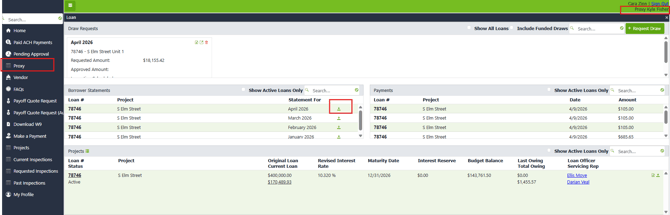
- Using your Legacy credentials sign into the borrower portal and proxy as your selected user
- Click on the borrower statement to test the download of their most recent statement
5. Review the LMS Email Box to make sure the borrower statement emails are being created AND sent
From LMS Menu
-
Select New Menus
-
Select Email Box
-
Add the Created On Column to the Table
-
Filter by Email Subject "Statement" OR "Your Monthly Statement is ready to view"
-
Review the email status column
- Submit a task to the developers to review if multiple items in this list are blank, failed, prepared, or blocked
6. Notate Results of Audit:
- Notate the Results of the audit in the log provided in this document – Include any relevant notes comments and links to Asana Tasks and HS tickets
- Post a confirmation of audit’s completion in the Teams Chat
- Resolve the HS Ticket for the audit - include any and all relevant notes and screenshots
Validation and Troubleshooting
-
Number of Borrower Statement vs Loans in Servicing Don't Match?
-
Possible culprit - Payoff's. Statement generated on same day as loan marked paid off Review the discrepant loans and you see an action that accounts for the issue (loan was either paid off or moved to Servicing during the time gap) then it is not a problem.
-
The number of loans in Servicing at the time of the action (documents posted) is not equal to the number of loans in servicing at time of report is pulled
-
AUDIT LOG – Notate the results of the audit here; include links to any ticket or tasks created
|
Date |
Results |
Tickets/Tasks/Resolution Notes |
Completed By |
|
03/02/26 |
No missing borrower statements |
|
CS |
|
4/1/26 |
No missing borrower statements |
|
CS |
|
5/1/26 |
No Missing Borrower Statements |
|
CZ |
|
6/1/26 |
No Missing Borrower Statements |
DH |
|
|
7/1/26 |
No Missing Borrower Statements |
CS |
|
|
8/1/26 |
No Missing Borrower Statements |
CZ |
|
|
10/1/26 |
No Missing Borrower Statements |
DH |
|
|
|
|
|
|
|
|
|
|
|
|
|
|
|
|