
Department Supported: Product Support Team
Description: Create the monthly Product Support Asana project, transfer open tickets, review workflow messaging, and close the previous project
Super Powers Required: No
Developer Support Required: No
Context/Common Situation
Complete this process on the first available business day of each month to prepare the new PS/Dev Asana project for team use and support related internal HubSpot workflow updates.
Instructions:
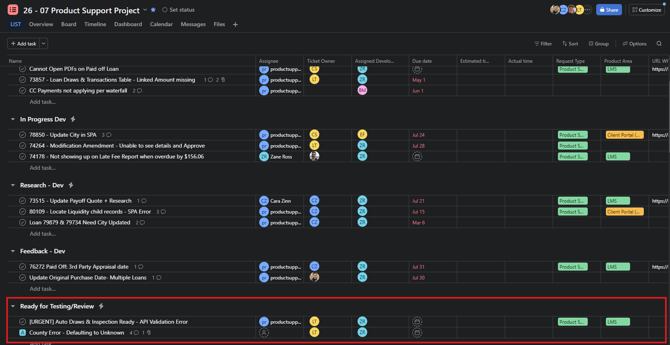
1. Review and complete the previous month’s tickets in "Ready for Testing"
1. Open the previous month’s PS/Dev Asana project.
2. Go to the “Ready for Testing/Review” section.
3. Validate and mark complete as many tickets as possible: (contact the ticket owner with questions if you aren't sure about the validation) - You can always transfer these to the new project and mark complete later
2. Duplicate the previous month’s project
-
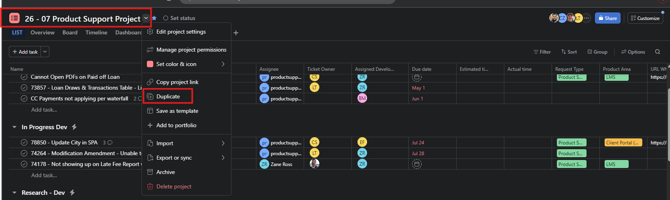
In Asana, open the previous month’s project.
-
Click the dropdown arrow next to the project name at the top.
-
Select Duplicate.
-
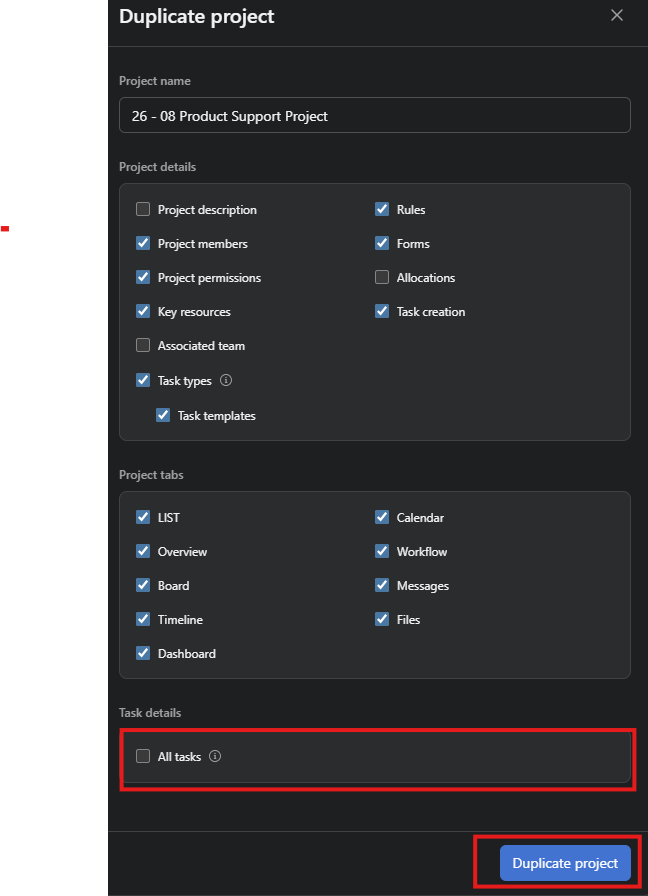
Update the duplication settings:
-
Project Name: [26 - MM Product Support Project]
-
Project Details: No Change
-
Project Tabs: No Change
-
Task Details: Uncheck “All Tasks”
-
-
Click Duplicate Project.
-
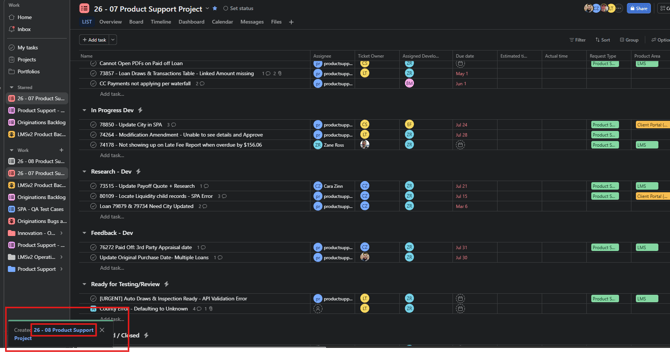
Click to open the new project.
3. Review MS Teams Rules/Workflows and triggers
-
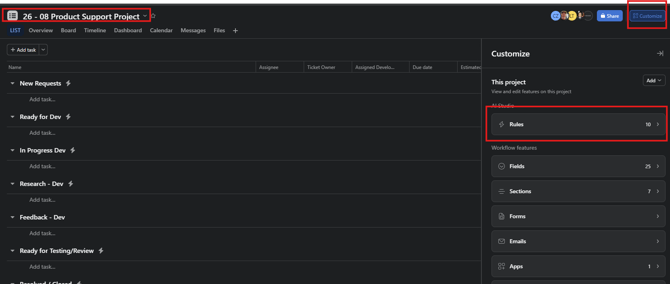
In the new project, select the Customize tab at the top.
-
Select "Rules"
-
Review each rule by clicking into its details.
-
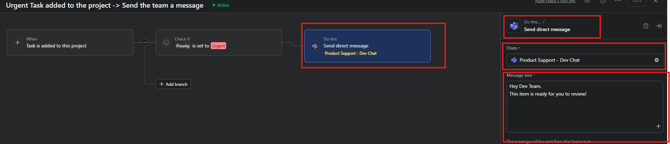
"Urgent Task added to the Project - > Send the team a message"
-
"Task moved to Ready for Testing/Review -> Assign Task Creator"
-
"Assigned Developer is set -> Move to In Progress Dev and Notify"
-
-
Review the Direct Message for each action:
-
Chat: Product Support DevMessage
-
Text: Should match what you are trying to convey (refer to previous Teams messages for examples).
-
4. Transfer outstanding tickets into the new project
For each outstanding ticket in the previous month’s project:
NOTE: Some tasks exist in multiple projects. DO NOT delete the task from these other projects. Only make transfers between Product Support Projects.
-
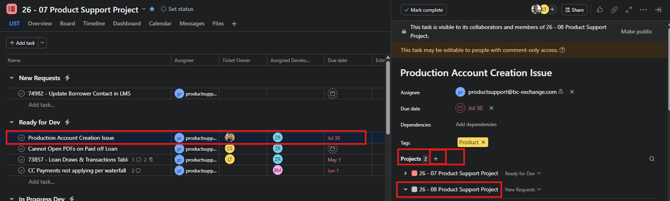
Click the task to open Details.
-
Click the plus sign next to Projects and select the new project name from the dropdown.
-
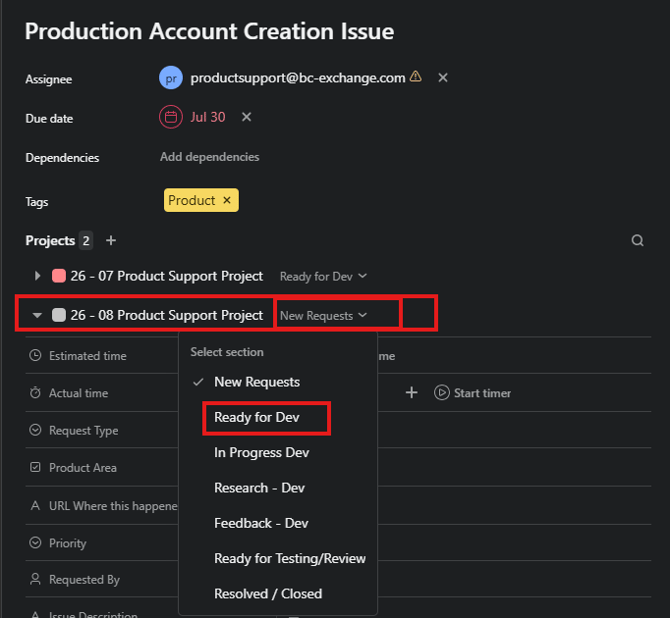
Next to the new project name, click the dropdown arrow and select the correct tab (for example: New Request, Ready for Dev, etc.).
-
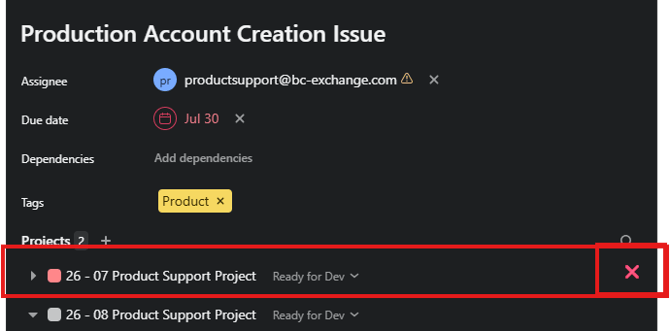
Remove the task from the old project by hovering over the old project name and clicking the X.
5. Mark the previous month’s project as complete
-
Open the previous month’s project.
-
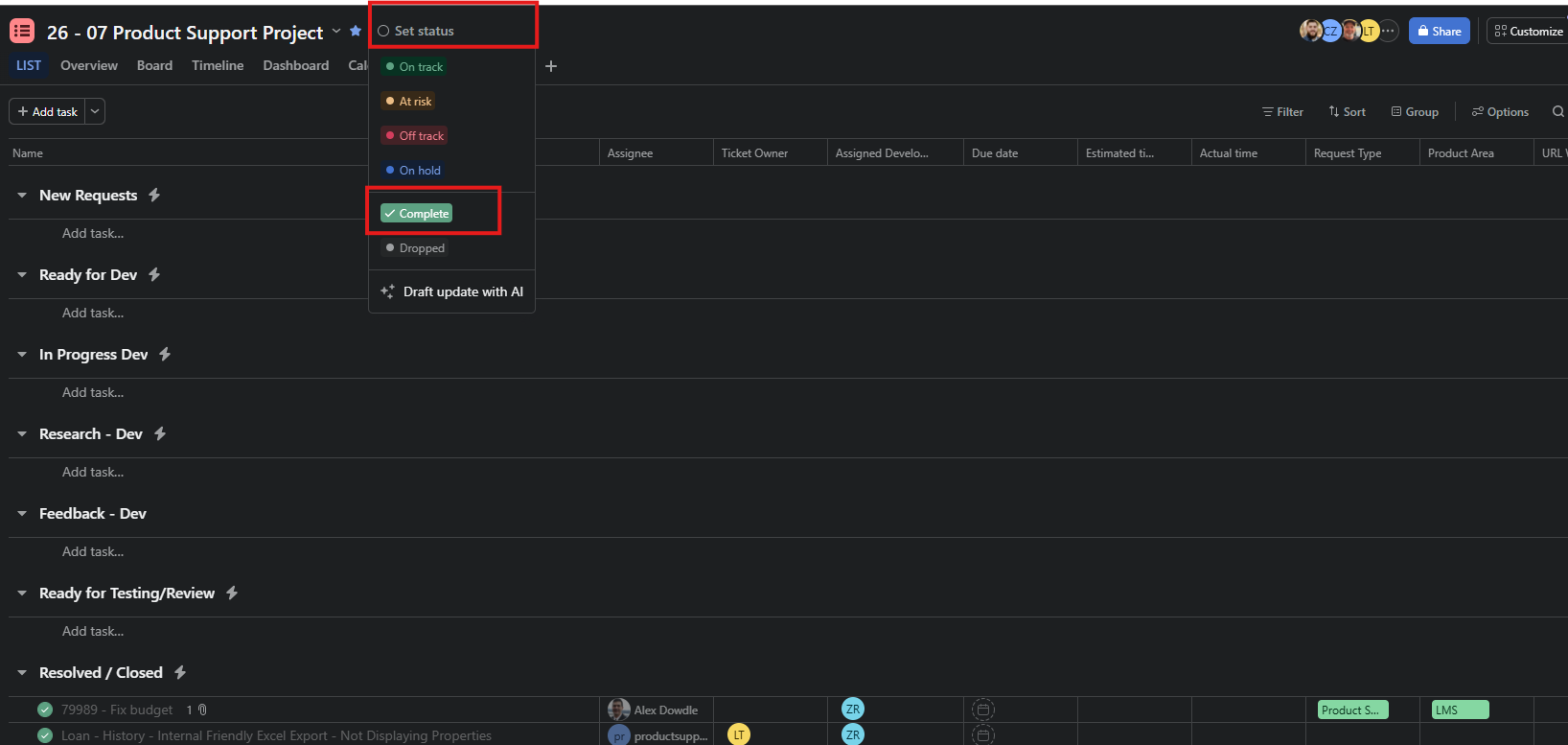
At the top, select Set Status.
-
In the dropdown, select Complete.
-
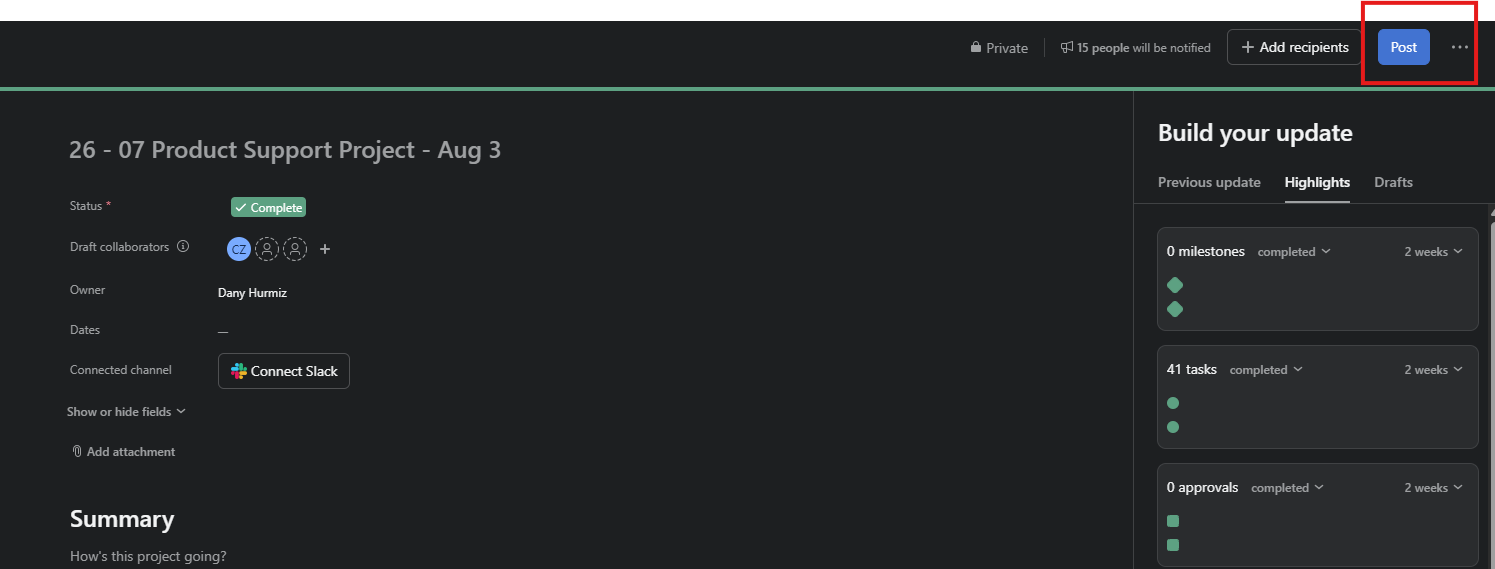
On the next pop-up screen, select Post.
6. Teams notification: Alert the team when the new project is complete so the internal HubSpot workflows can be updated by HubSpot Admins