Primary Department Supported: Servicing
Super Powers Needed? – NO
Developer Support Needed – NO
Context and Common Situations
Contacts are merged when:
- Servicing requests an update to a contact’s email address
- A duplicate or erroneous version of a contact exists
Important Considerations & Best Practices
- Use caution: When a merge is completed, any loans and organizations previously associated with the old contact will be attached to the remaining/new contact name
- Always review both the old contact and new contact before merging.
- IF two copies of the contact are found OR if the contact is attached to multiple borrowers: Confirm with the ticket requester which contact should remain active and whether the contacts should truly be merged versus kept separate.
Instructions:
To Merge Contacts in LMS
From the LMS Menu:
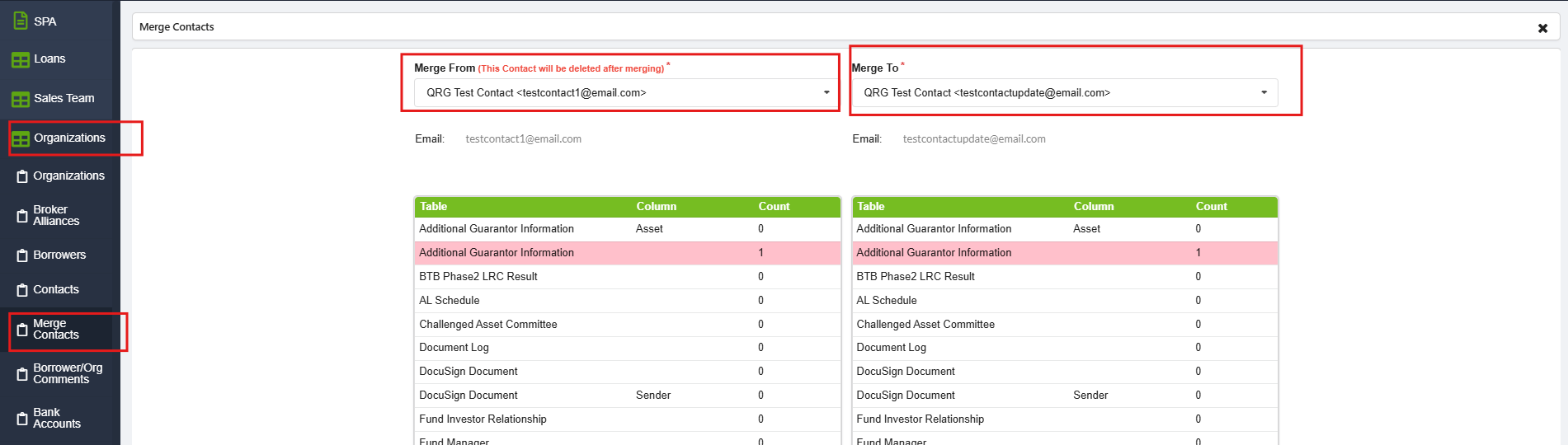
- Select Organizations → Merge Contacts
- Enter the Old Contact name on the left (this name will be removed from LMS)
- Enter the New Contact name on the right (this is the name that is staying in LMS)
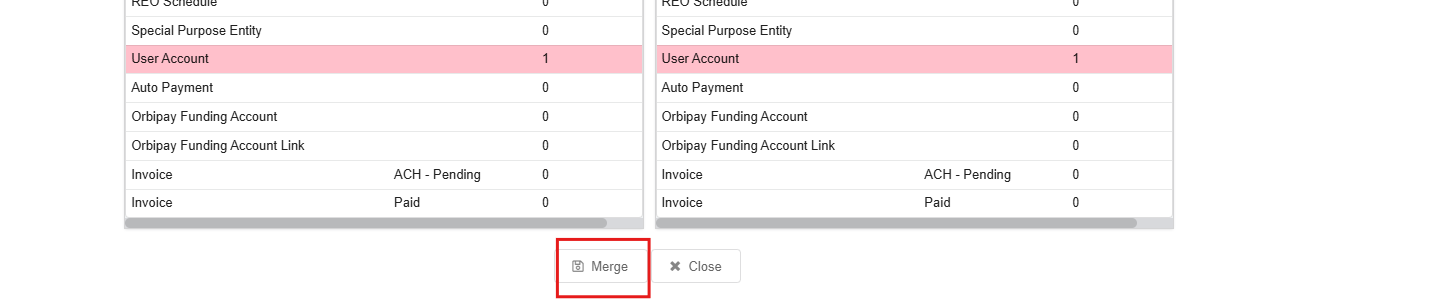
- Click Merge