
Primary Department Supported: Accounting
Description: How to apply a Principal Payment to a Loan in LMS
Super Powers Needed? - NO
Developer Support Needed? - NO
Context and Common Situations
These requests may be stand‑alone (e.g., “please post this principal payment”) or part of a larger correction process involving voiding and re‑applying multiple payments, with remaining funds applied to principal.
Important Considerations & Best Practices
- Review Post Payments: Before a principal payment can be applied, you must follow waterfall application order to ensure all outstanding obligations are satisfied correctly via Waterfall Order
- Waterfall: Funds must always be applied in the following order
- Past Due Interest
- Past Due Fees
- Current Due Interest
- Current Due Fees
- Principal
- If Post Payments indicate other outstanding amounts need paid first: Confirm Accounting
- If ticket requester insists on a payment being applied outside of waterfall - Accounting Leadership should review and approve
Instructions:
1. To Post a Principal Payment:
From LMS Menu
-
Select Accounting
-
Select Post Payments
-
Click on "Post Payment"
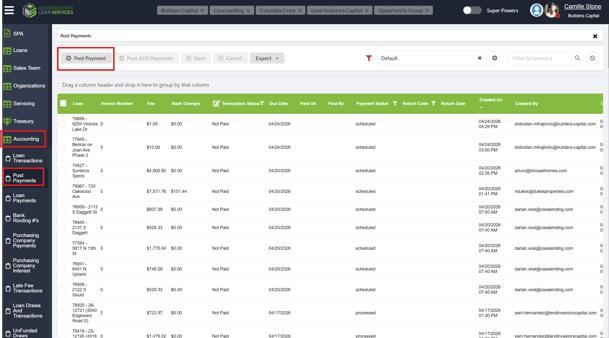
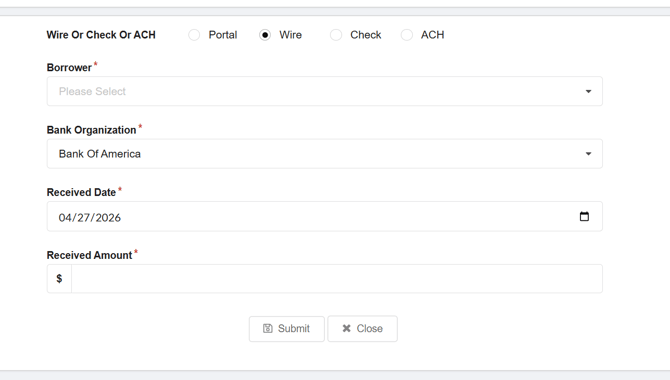
- On the first screen:
- Add the borrower organization
- effective date
- amount then hit submit
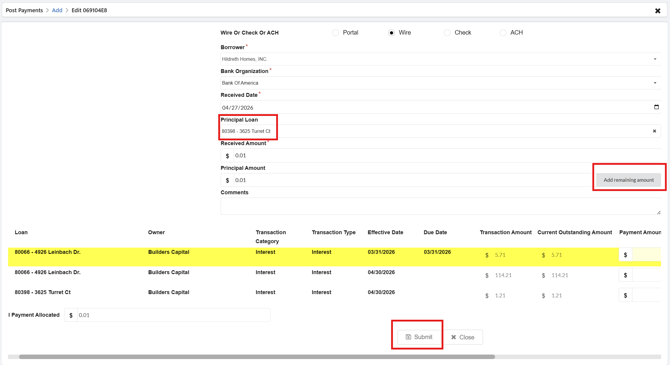
- On the Second Screen:
- Open the dropdown for "Principal Loan" and select the correct loan number
- Add the amount of the Principal Payment to the box for "Principal Amount" OR click the box that says "Add remaining amount".
- Click Submit.
Validate the payment by reviewing Loan History tab
Video Walkthrough: