
Department Supported: Servicing
Description: How troubleshoot and resolve when the Approve button is not visible on an active/requested draw
Super Powers Needed? - NO
Developer Support Needed? - NO
Important Considerations & Best Practices:
The Approve button will only appear when one of the following conditions is met:
- Date Down is Ordered
- Date Down and Draw Inspection are Waived
Instructions:
- Open the affected draw and confirm the approve button is missing
Example: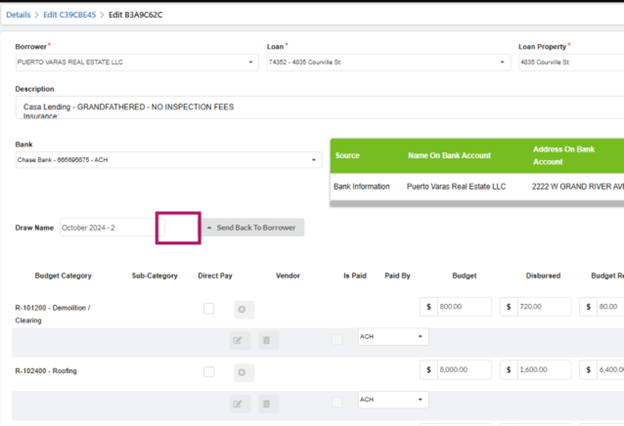
- Scroll to the Date Down Order/Waive section.
Example: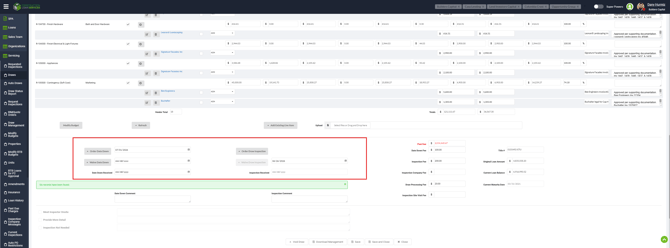
- Complete one of the following actions:
- Order the Date Down, or
- Enter the waiver information and waive both the Draw Inspection and Date Down.
- Refresh the draw page.
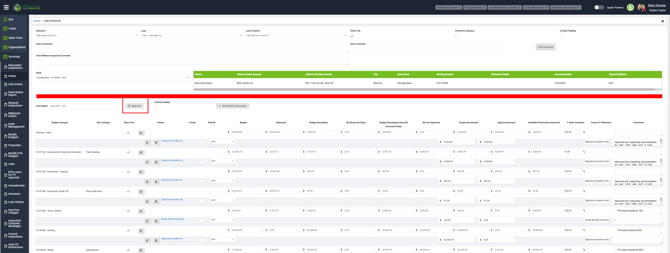
- Verify that the Approve button now appears.
Validation & Troubleshooting:
- After the Date Down is ordered, or both the Date Down and Draw Inspection are waived, the Approve button should appear after the page refreshes.
- If the button still does not appear after confirming the required statuses are set correctly, contact the Devs for further investigation.