
Primary Department Supported: Accounting
Description: How to void a loan payment in LMS for corrections or loan history updates, including when Super Powers are required and when developer review is needed for Interest Reserve payments.
Super Powers Needed? -YES
Developer Support Needed? - NO
Context and Common Situations
- Voiding a loan payment may be requested as a one‑off correction, such as when a payment was returned and needs to be voided.
- It may also be required as part of the process for correcting the Loan History before re‑posting a payment.
Important Considerations & Best Practices
-
Pay attention to payment date:
-
Requests to void that come from outside accounting: All voids (even current month) must be approved by Accounting leadership (Helen Yoon, Richa Pandey, Megan McKell or Lisa Aplin)
- Requests that come from accounting team members: No approval needed if the payment is in the same/current accounting month.
-
-
Pay attention to payment type: Interest Reserve payments must be voided by Developers with additional review/approval.
-
Validate the void: Refresh Loan History to confirm; voided payments appear highlighted in pink.
Instructions
To Void a Loan Payment
From the LMS Menu, Select:
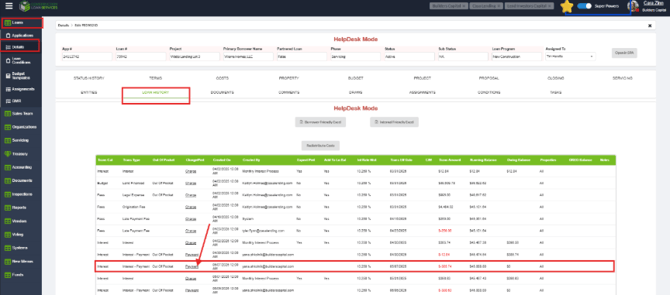
- Loans → Details → Loan History
- Turn on Super Powers.
- Scroll to locate the Payment.
- Click the Payment link to open the payment details.
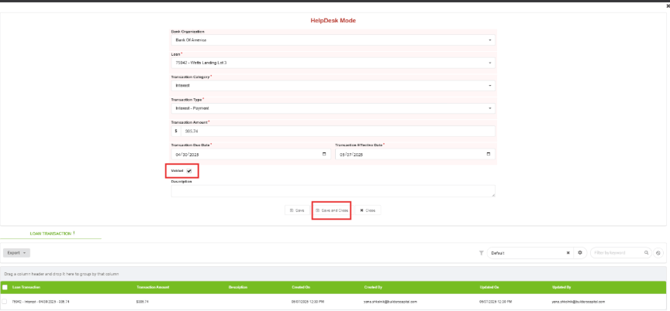
In the Payment Details window:
- Checkmark the Void box.
- Add a note for the reason of the void and/to notate the void is approved
- Click Save and Close.
Validation and Troubleshooting
- Validate that the payment was voided: Refresh the Loan History to verify the update. - Voided payments appear highlighted in pink
- If the payment does not appear or the void box is not visible voided, confirm:
- Super Powers were enabled.
- You selected the correct payment
- You selected a payment and not a charge
Video Walkthrough: