Primary Department(s) Supported: Servicing/ Closing
Super Powers Needed? - YES
Developers Support Needed? - NO
Context Common Situations
- Servicing may request an update to the Current Maturity Date when it does not match the expected value:
- These discrepancies often appear after loan moves to Servicing Active or after Built-In extension amendments have been Implemented.
Important Considerations & Best Practices
- Original Maturity Date Requirements: Review the loan documents (if not provided) before making any adjustments. This would be located on the Promissory Note for the loan
- The Original Maturity Date must always match the date shown on the executed Loan Documents. - Extension Amendments: Review the Servicing Tab and select "View Amendments" Table
- If the maturity date was extended, there should be an amendment record in the Implemented Status. The updated/expected Maturity Date will be listed on and in this amendment. - Revolver Mini Loan Allocations: Review and validate dates on Master Loans
- Any Mini Loans (12345V01 or 12345D01 etc.) should always reflect the same Maturity Date as the Master Facility (12345M)
Instructions
To Update the Current Maturity Date
From the LMS Menu:
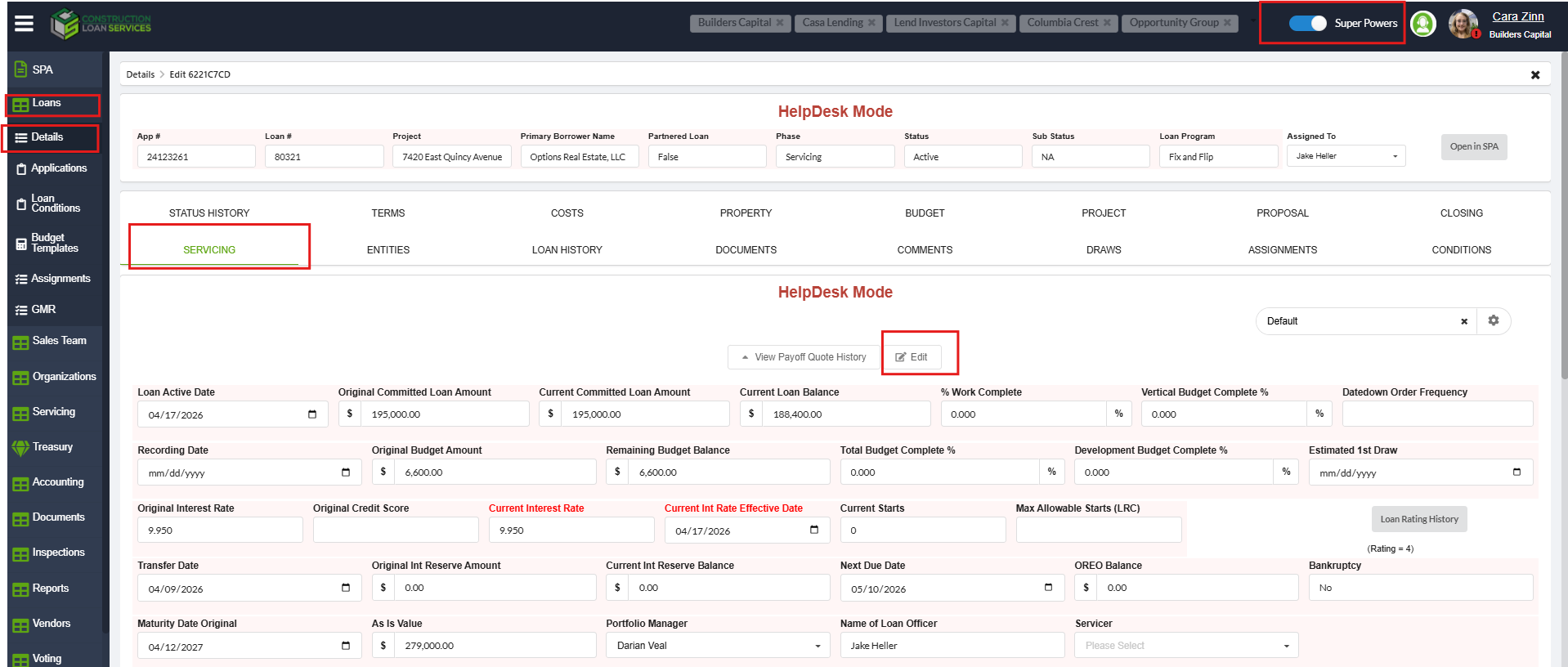
- Select Loans → Loan Details → Servicing Tab
- Turn on Super Powers.
- Select Edit.
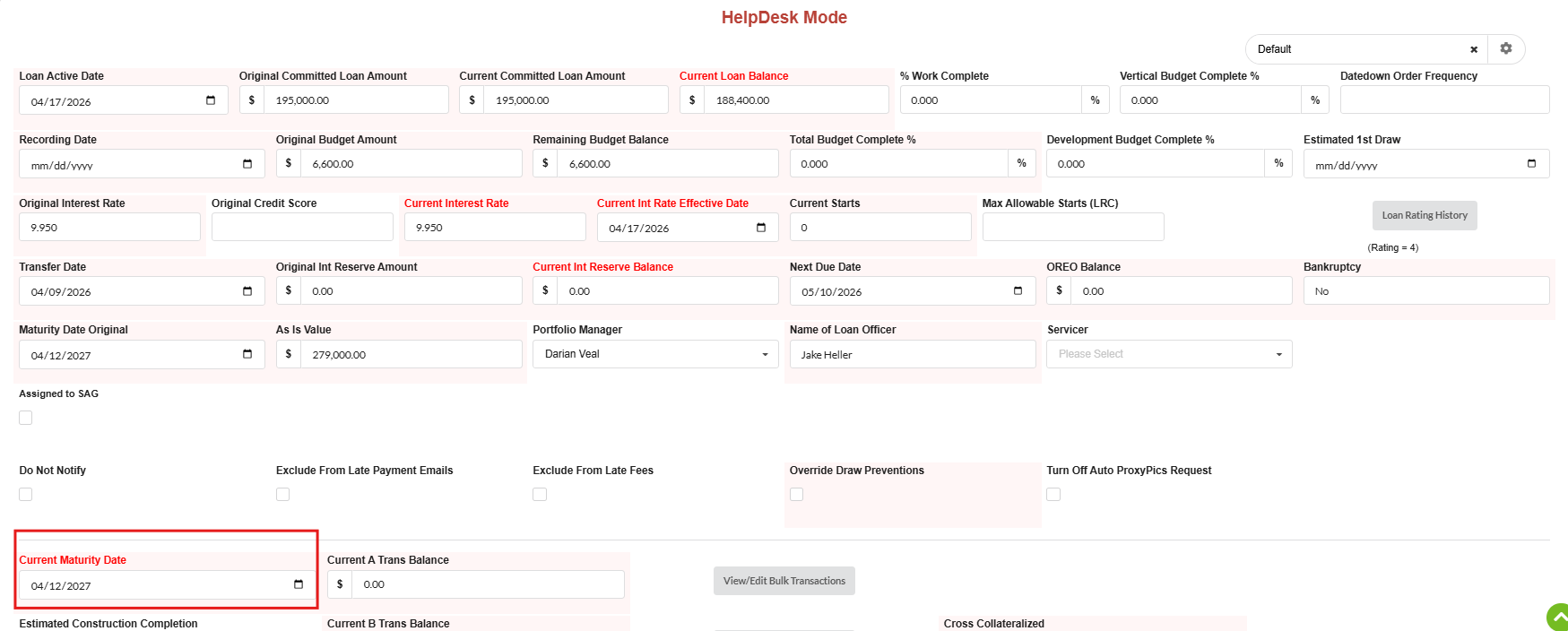
- Locate the Current Maturity Date field and enter the correct date.
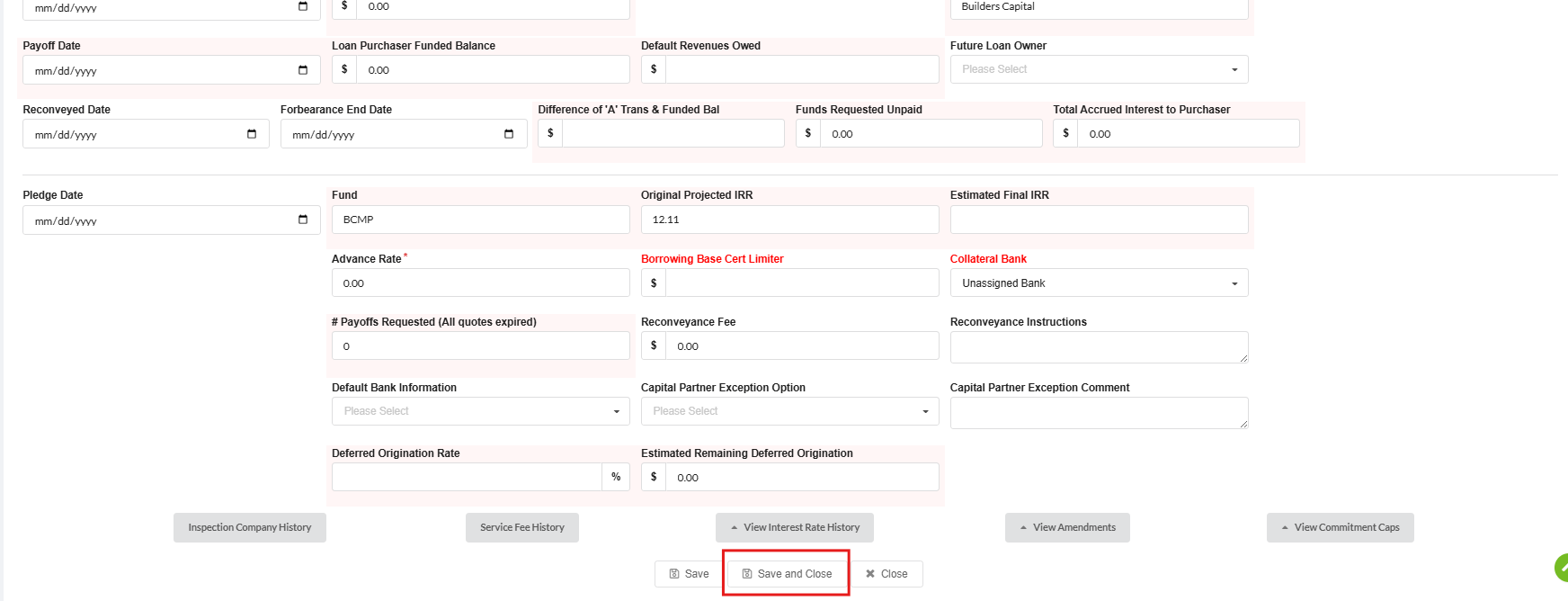
- Click Save & Close