
Primary Department Supported: Servicing/Treasury
Super Powers Needed - NO (for Unit Level Updates)/YES (for Terms Tab Updates)
Developer Support Needed? - NO
Context Common Situations
- Updates to Partial Deed Release (PDR) amounts are typically requested when:
- The Property Upload Form failed, causing the system to miss or incorrectly apply the PDR value.
- The original PDR amount was entered incorrectly and needs correction or is no longer valid
- Past Bugs in the system caused PDR Values to be updated or changed erroneously
Important Considerations & Best Practices
- Before any edits, approval is required from Lisa Aplin, Lisa Kraynak, or Leadership.
- PDR values are located on the Terms tab, AND at the Unit Level .
- Most PDR updates should occur at the unit level
- Avoid updating PDR on the Terms tab unless specifically confirmed by Lisa K — changes here may cascade across all properties and units, causing unintended updates.
- You can always test the property upload form on your own in Pre-Prod to see if the upload feature is working
Instructions:
Update PDR Amount at the Unit Level (Most Common)
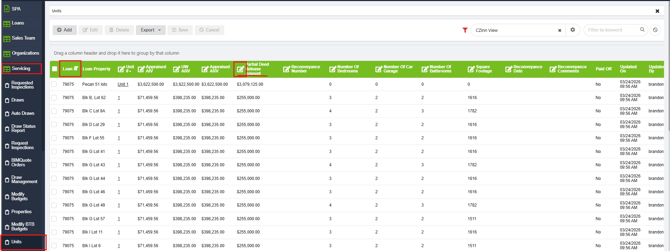
From the LMS Menu
- Select Servicing
- Select Units
- Filter by Loan Number to locate a full list of units for that loan
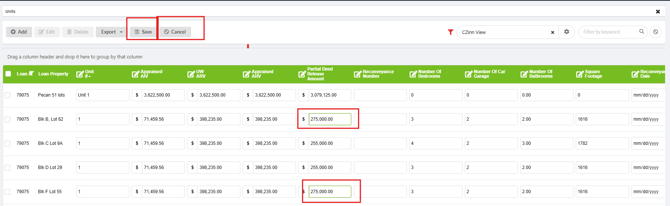
- Click use the Square/Pencil icon in the “Partial Deed Release”
- Enter the updated PDR values for the unit or units provided in the ticket.
- Select Save
- Select Cancel to close the editing window
To Update PDR Amount on the Terms Tab: (as requested and approved by Lisa K)
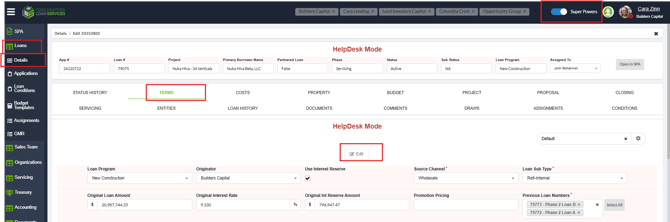
From the LMS Menu:
- Select Loans
- Select Loan Details
- Locate loan and click to open details.
- Select the Terms tab.
- Turn on Super Powers
- Click Edit.
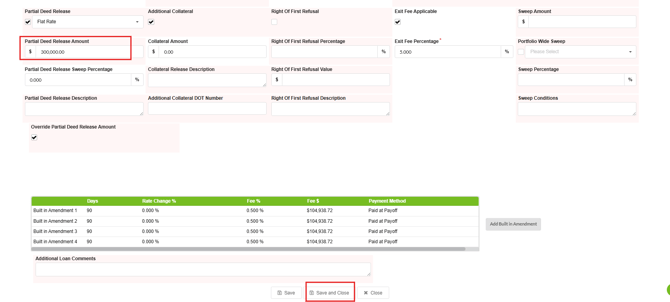
- Locate the Partial Deed Release amount and enter the updated value.
- Click Save and Close
Validation and Troubleshooting
Verify the requested values match the approval communication or Provided Property Upload Form: You can validate this by Refreshing the Servicing Menu/Units section and comparing values with the Property Upload Form