
Primary Department Supported: Accounting
Description: Instructions for how to change the amount of a principal payment
Super Powers Needed? - YES
Developer Support Needed? - NO
Context and Common Situations
Used when the amount of principal payment needs to be corrected
Important Considerations & Best Practices:
- Product Support can void and repost the payment, as long as the request comes from accounting.
- Verify the effective date before posting the new payment.
Instructions
To Correct a Principal Payment Amount:
1. Void the existing payment
From LMS Menu:
-
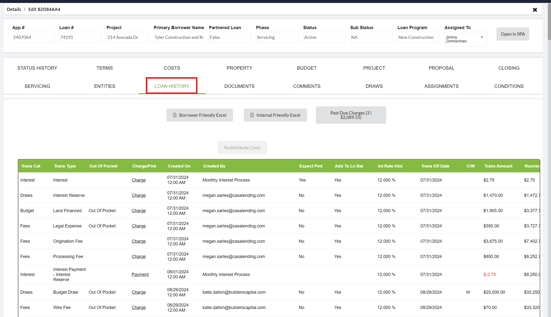
Select Loans
-
Select Details: Locate and Open up Loan Details
-
Select Loan History
-
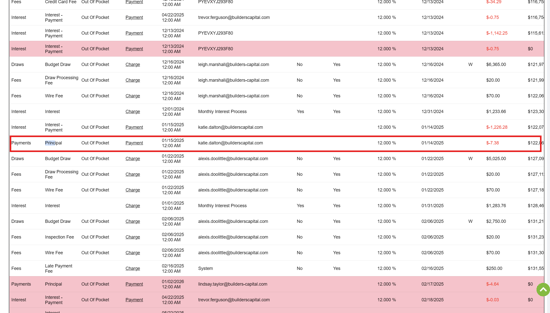
On the payment requested clicking into the line item
-
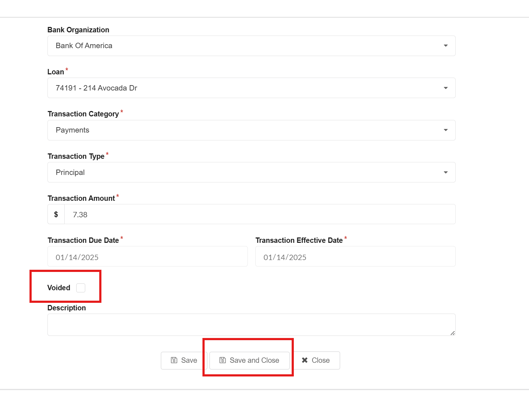
Mark the Void checkbox
-
save and close
2. Post a new Principal Payment with the new amount
From LMS Menu
-
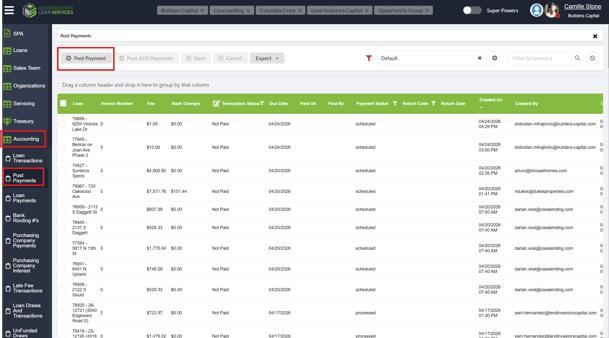
Select Accounting
-
Select Post Payments
-
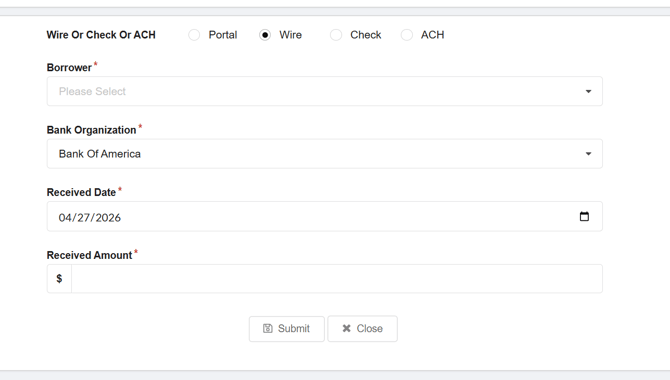
Click on "Post Payment"
- On the first screen:
- Add the borrower organization
- effective date
- amount then hit submit
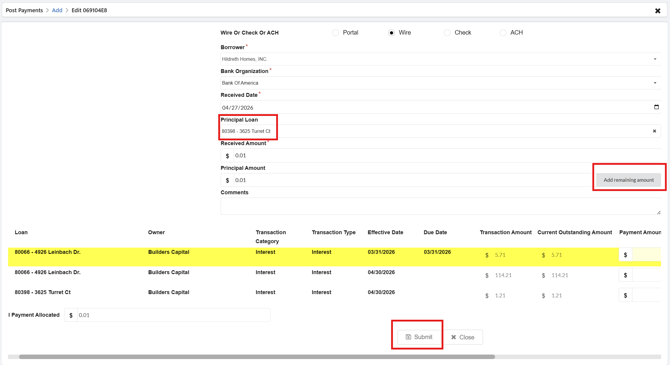
- On the Second Screen:
- Open the dropdown for "Principal Loan" and select the correct loan number
- Add the amount of the Principal Payment to the box for "Principal Amount" OR click the box that says "Add remaining amount".
- Click Submit.
Validation and Troubleshooting:
To Validate:
- Go to the Loan History tab and verify the amount posted with the Principal transaction type matches the request.
Walkthrough: