Primary Department Supported: Servicing
Super Powers Needed? - YES
Developer Support Needed? - NO
Common Situations
- A User Account gets created with the incorrect access type
- Servicing cannot proxy or locate a borrower’s portal account, even though the contact exists.
- This typically occurs because the user account was mistakenly created as an internal account instead of an external one.
- An employee who should be coded as an internal LMS user is accidentally created as an external user.
Instructions:
1. Switch a User Account from External to Internal
From the LMS Menu:- Select Systems
- Select External Users
- Turn on Super Powers
- Filter by the user’s name or email address
- Click to open the user’s account details
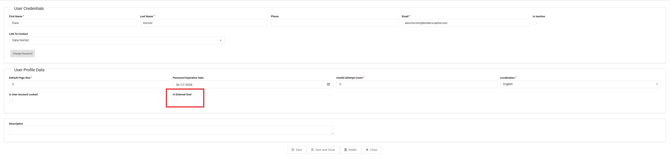
- Uncheck the box labeled “Is External User”
- Click Save & Close
2. Switch a User Account from Internal to External
From the LMS Menu:- Select Systems
- Select Users
- Turn on Super Powers
- Filter by the user’s name or email address
- Click to open the user’s account details
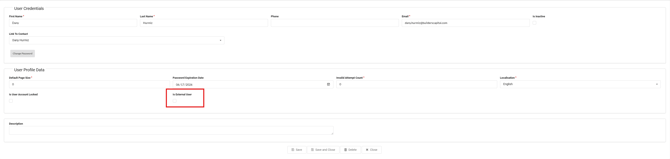
- Check the box labeled “Is External User”
- Click Save & Close