
Primary Department Supported: Servicing
Super Powers Needed? - NO
Developer Support? - YES
Common Situations:
Product Support is often asked to "Assign" a borrower name to a loan
A borrower name must be changed from one name to another, and the existing name is not a placeholder or duplicate.
Important Considerations & Best Practices
- Pay attention to the Loan Phase of the Loan where this is requested – Borrower Names should not be changed for Loans that are already in Servicing.
- Review the existing name attached to a loan – Borrower Names that are TBD values or are suspected to be duplicates should be fixed by merging. Merge Organizations
- Most Borrower names can be updated by LMS users in SPA
- Attempt to make the change in the SPA first: Most loans in Production will allow users to make this change directly in SPA
- If changes in SPA are locked out: A developer ticket must be submitted to complete this update.
Instructions
1.Attempt the Change in SPA
-
Proxy into the ticket requester
-
From LMS Menu
-
Select SPA
-
Search for the loan number and click to open details
-
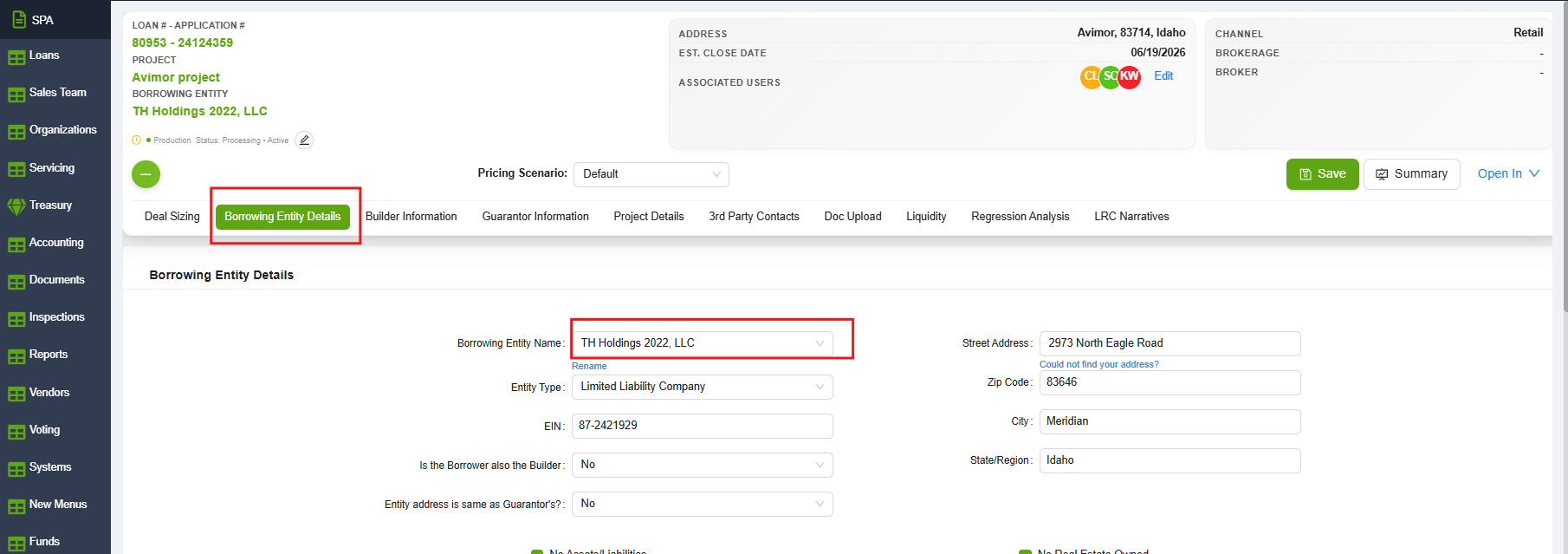
Select the Borrowing Entity Details Tab
-
Click on The Borrowing Entity Name Name field:
-
-
If this field allows you to type and make changes: Stop and advise the ticket requester to change the name in SPA.
- If this field is greyed out and does not allow changes to be made: Remove the proxy and attempt the change under your personal profile
-
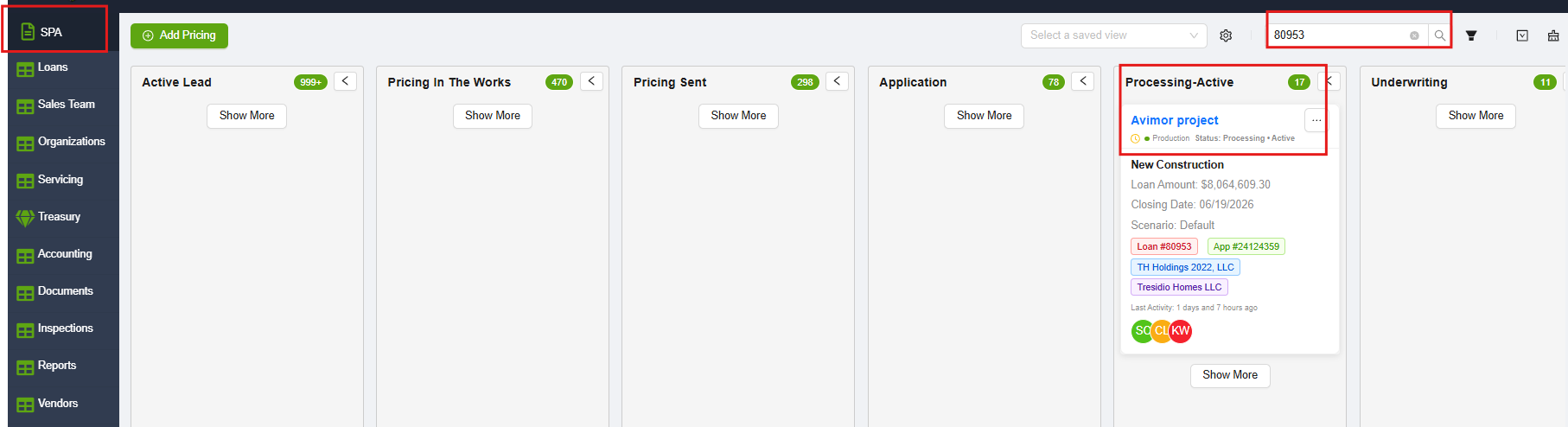
2. If SPA does not allow the changes (is greyed out/locked): Change the name of the HubSpot ticket as needed and Submit Task to the Developers.
Asana Task Guidelines:
-
Task Name (should match the name of the HS Ticket): Task Names should be an easy way to name the ticket for understanding and identification (include loan number or numbers when applicable)
-
Developer Description: Specific instructions to ask the developer for exactly what is needed( always include screenshots and URL's of exactly what items you are referring to)
-
REPRO: Reproducing Steps and links: Step by step instructions with URL links and screenshots for the developers to get to the section in LMS where the changes are to be completed
Dev Ticket: Template
Task Name: [Loan #] – Update Borrower Name – Loan Level & Entities Tab
Developer Description:
Please see below for the changes required on this loan:
- Main Loan Level: Update the Primary Borrower to: [Borrower Name]
- Entities Tab: Add the borrower name: [Borrower Name]
- Entities Tab: Remove the borrower name: [Borrower Name]
(Provide a Screenshot of Loan Details highlighting the Borrower Name)
(Provide a Screenshot of Entities Tab, highlighting the borrower being removed)
REPRO:
Main Loan Level: (add URL to Loan Details)
- Loan
- Loan Details
Include: Screenshot of Loan Details
To Entities Tab: (add URL to Entities Tab)
- Loans
- Loan Details
- Entities Tab
ADD BORROWER NAME
- Click Add
- Search for [Borrower Name]
- Select the checkbox next to the borrower's name
- Click “Add Related Entity”
Include: Screenshots of Entity Tab
DELETE BORROWER NAME
- Select / highlight the borrower to be removed
- Click Delete
Include: Screenshot of Entity Tab with the removal steps highlighted