
How to locate, generate, and replace borrower statements in LMS and ensure the updated statement is available in both LMS and the borrower portal.
Departments and Access
Primary Department Supported: Servicing/Accounting
Super Powers Needed? - NO
Developer Support Needed? - NO
Context and Common Situations
You may need to retrieve, generate, or update a borrower statement when:
-
The borrower received an incorrect statement.
-
Accounting requests a new borrower statement to be created and uploaded to the borrower portal after specific corrections to the loan history.
Important Considerations & Best Practices
- Borrower Statements can be generated and uploaded to LMS by most servicing roles
- When you upload a generated statement to LMS and connect it to the loan – It will automatically be available in the portal
- When Generating the New Statement: checkmark Report Adhoc to prevent unnecessary borrower notifications from being sent.
Instructions:
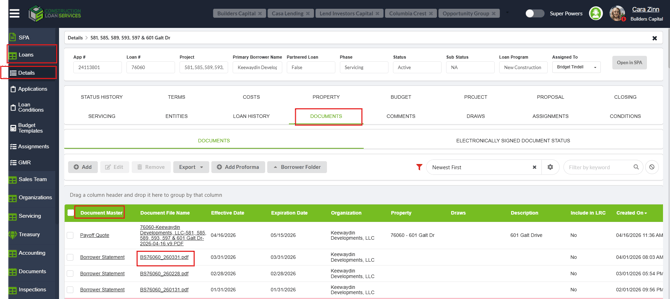
1.To Locate existing borrower statement in LMS
From LMS Menu:
-
Select Loans
-
Select Loan Details
-
Locate Loan and open details
-
Go to Documents
- Search the Table for Borrower Statement
- Click the document link to download the statement you wish to review
2. To Generate a New Borrower Statement
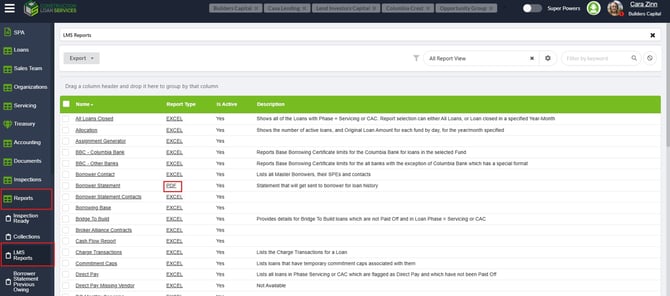
From the LMS Menu:- Select Reports → LMS Reports
- Locate Borrower Statements Report and click the PDF hyperlink.
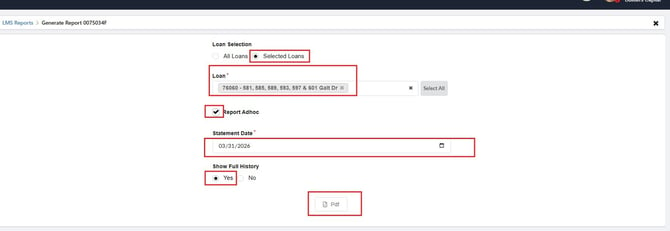
- Complete the following fields:
- Selected Loans: check mark this box
- Report Adhoc: check mark this box (prevents extra borrower notifications)
- Loan Number: Enter the applicable loan number
- Date: Set to last day of the previous month for the statement you are generating
- Full Loan History: mark YES
- Click PDF to download the generated statement.
- Save this file to your computer (optional)
3. To Upload the New Statement to LMS / Replace Previous Statement
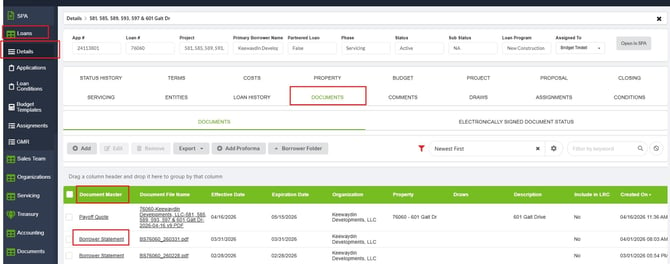
From the LMS Menu:- Select Loans → Loan Details
- Locate the loan number and open the loan details
- Select the Documents tab.
- Locate Borrower Statement for the month you are replacing and click its hyperlink.
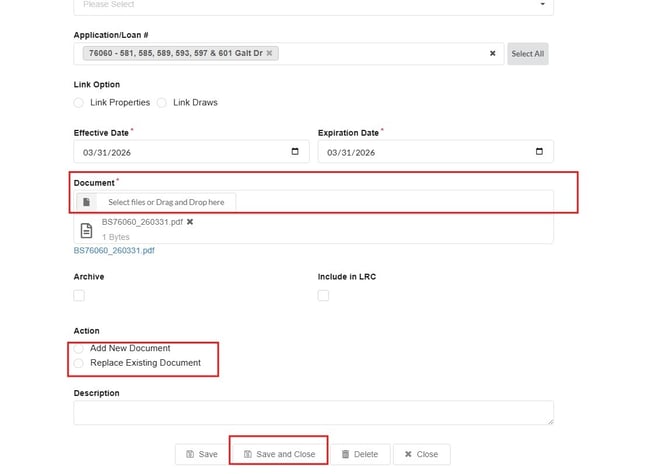
- Complete the following fields:
- Document: Upload the newly saved borrower statement
- Action: Select box for Replace Previous
- Click Save and Close.
Validation and Troubleshooting
You can check to make sure the updated statement is available in LMS and the Portal:
-
In LMS: Go to the Loan Details – Documents Tab and search for the statement
- Portal: Proxy into the borrower portal for a user with access and review the statements section. Click to download and open the statement