Primary Departments Supported: Servicing, Credit Officers
Super Powers Needed? -NO
Developer Support Needed? - NO
Context & Common Situations
Requested when a loan has entered Servicing and the number of units on a property must be updated. This is not the same as requests to update Values within/on specific units.
Currently Product Support needs to make these changes in Legacy to get around error messages in V2. Common Error: “Total Property Units cannot be greater than Number of Units in Property” 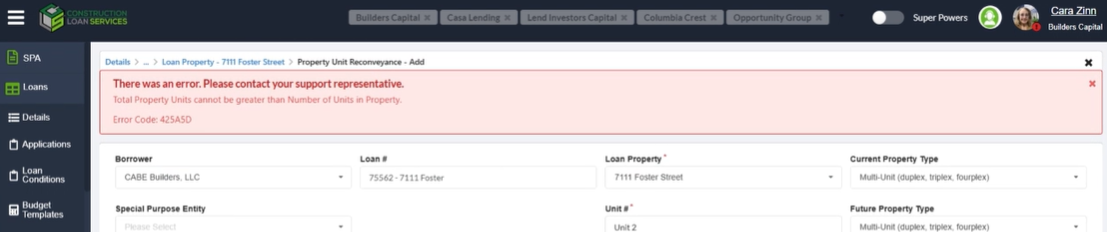
Important Considerations & Best Practices
-
Review the Loan Status:
-
Loans still in Production should be able to be updated with Property Upload Form/Sheet directly and can be done by most LMS Users
-
Loans in Servicing will need to have the total number of units increased before each individual unit can be added.
-
- Confirm with the ticket requester if any unit values (AIV/ARV/UW etc.) are being added or changed across the loan and/new units.
- request or create a Property Upload Form regardless of the Loan Status
- Once the total number of units attached to a property is correct – Uploading a Property Upload Form to update the unit values – should function normally in V2
Instructions
1. For Loans in Production: Use the Property Upload form to modify the number of units and their values attached to a property.
To upload the Property Upload Sheet:
From LMS Menu:
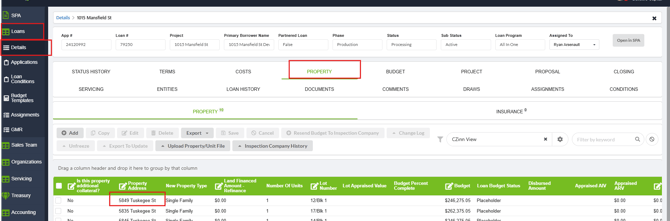
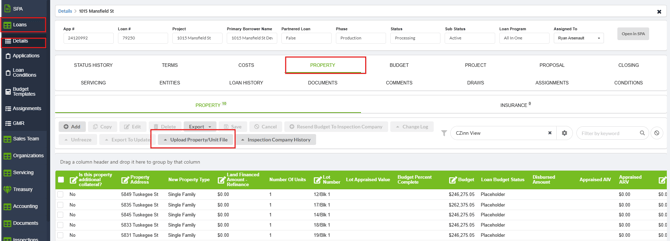
- Select Loans
- Select Details
- Open the Loan
- Select the Property Tab
- Select the “Upload Property/Unit File
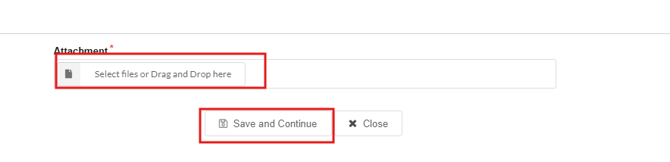
- Attach the Property Upload Sheet
- Click Save and Continue
2. If the Loan is in Servicing: You will need the total number of units attached to the property to be correct. Then you can use the Property Upload Sheet or manually add each unit to the property
NOTE: This update is done in LMS Legacy and in V2:
- In Legacy - Increase Total # of Units at the Property Level and add the individual units/unit information in V2.
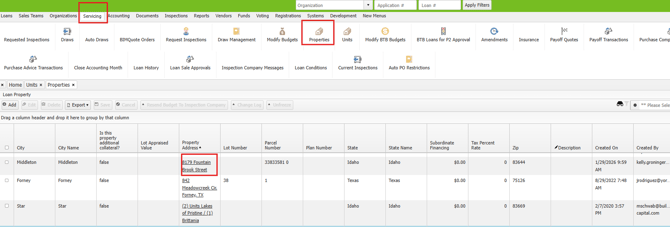
From Legacy Menu:
- Select Servicing → Properties.
- Locate the Loan and then the specific Property.
- Click the Property to open details.
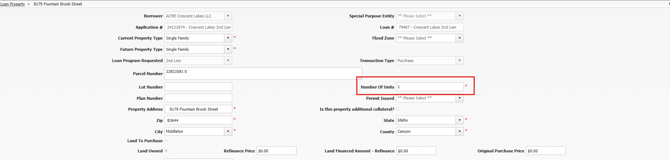
- Increase the Number of Units field to the correct total.
- Click Save.
2.In LMS V2 – Upload the Property Upload Sheet or manually add the individual units to the property
To upload the Property Upload Sheet ( See instructions above)
To manually add individual Units
From LMS Menu:
- Select Loans
- Select Details
- Open the Loan
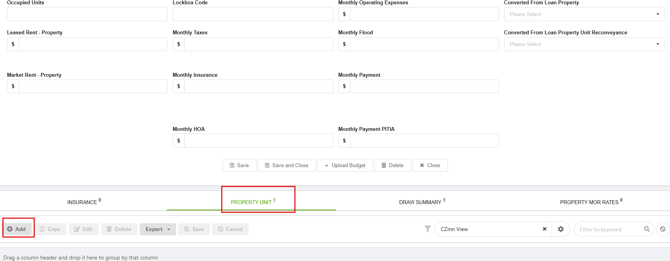
- Select the Property Tab
- Locate Property and click to open details
- Within the Property Details select the Units tab
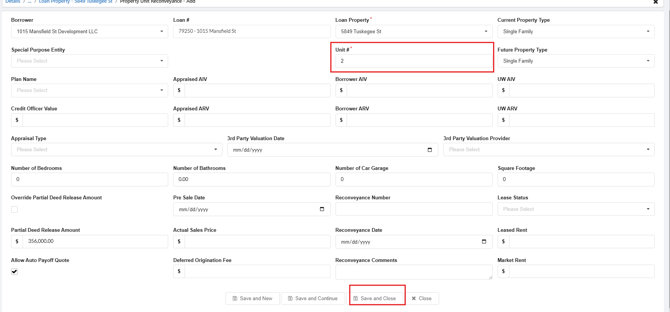
- Click Add to create a new unit
- Enter the Unit Number
- Save and close