Primary Department Supported: Servicing
Super Powers Needed? - NO
Developer Support Needed? - NO
Common Situations
- Borrower or Vendors commonly report that they are unable to add their own bank account information in the portal – This is most likely due to incorrect information within LMS or user error from the Portal User.
- Product Support no longer manually adds Borrower or Vendor bank account information without approval from Helen Yoon and only after troubleshooting and resolving all possible technical issues.
Important Considerations & Best Practices
- Encourage the borrower or vendor to add their own banking information through their portal; If errors occur or are being reported, request clear screenshots and a description of the issue
- Attempt to troubleshoot and resolve all errors and issues before going to Helen
- Approvals must be fully documented in the HubSpot ticket email thread
Instructions:
Troubleshoot and Resolve all Portal Permissions and LMS Data IssuesReview screenshots and error messages to determine whether:
- The user is in the correct portal/ URL
- There is a permission or role-related issue.
- Review the contact level, entities tab level and User Account levels; Ensure all roles and contact information and permissions are assigned correctly
- Submit any relevant tickets to the developers to ensure that back-end links and connections are correct (ie. Gurantors to borrower orgs/etc)
- Obtain Required Approval
- If manual entry is the only solution, obtain approval from Helen Yoon (Accounting/Controls).
- Ensure approval is documented in the HubSpot ticket email thread before proceeding.
Instructions: (After Approval Is Granted)
To Add Borrower Bank Account Information
From LMS Menu:
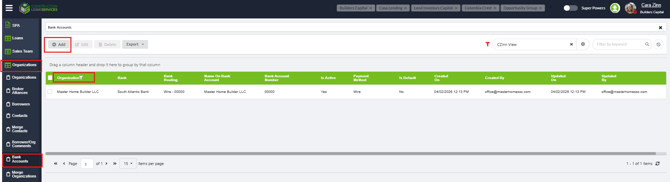
- Select Organizations → Bank Accounts
- Search for the Borrower Organization to identify existing bank accounts.
- Click Add.
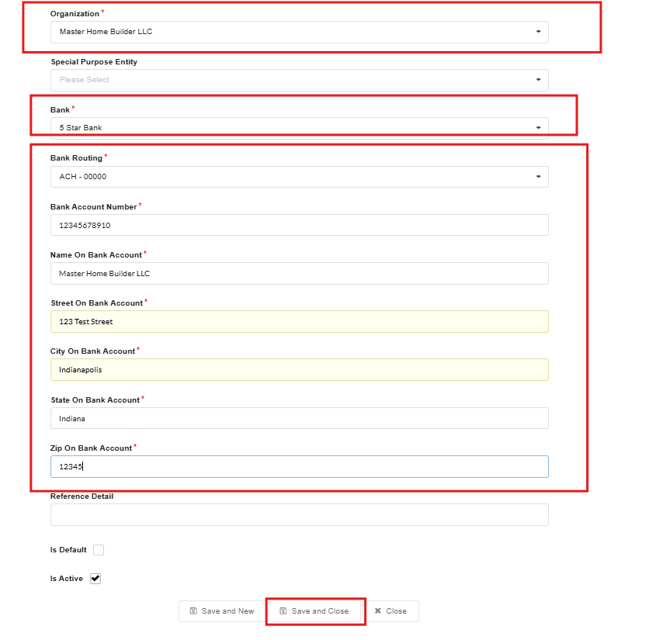
- Enter the borrower’s bank account information.
- Select Save & Close.
To Add Vendor Bank Account Information
From LMS Menu:
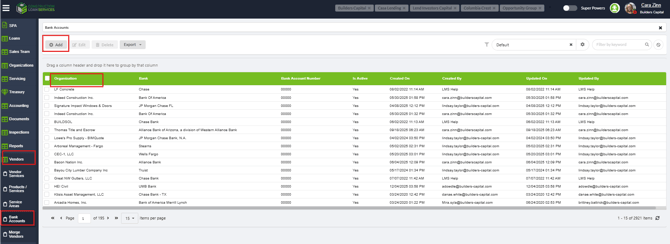
- Select Vendors → Bank Accounts
- Search for the Vendor Organization to view any existing bank accounts.
- Click Add.
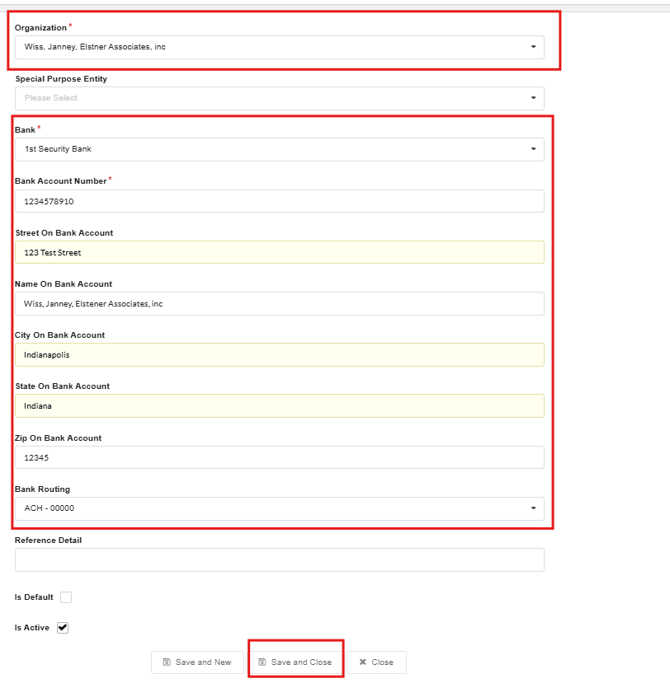
- Enter the vendor’s bank account information
- Note: Adding Wire instructions for a vendor is not typical and is only done under specific circumstances
5. Select Save & Close.