Primary Department Supported: Product Support
Description: How to add the SOFR Rate/Variable Index Rate to the Configuration Tables in LMS to prepare the system to process Variable Index Rate changes to loans.
Super Powers Needed? - NO
Developer Support Needed? - NO
Context and Common Situations:
The SOFR/Variable Index Rate for the month is announced/released early on the first day each month.
Product Support retrieves the SOFR/Index Rate from the CME website and enter it into the LMS Configuration Table. LMS system processes will later trigger a process in to apply this Index Rate to adjustable rate loans.
Important Considerations & Best Practices
-
THIS IS AN EARLY MORNING PROCESS: SOFR Rate/ Index MUST be added prior to the time the LMS system triggers the SOFR update process. Updated SOFR should appear at the following times:
-
West Coast (PT/PST): 3AM
-
Central Time (CT/CST): 5AM
-
East Coast (ET/EST): 6AM
-
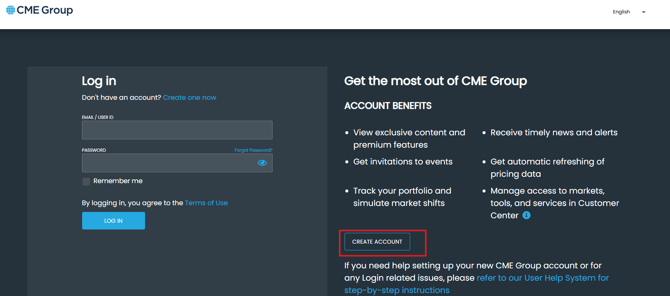
- Create and sign into your free account to see the correct SOFR rate
- For months that start over a weekend or holiday the SOFR/Index Rate will be set using the last business day of the month - Confirm dates with Alex Dowdle or Lindsay Taylor
- Table entry can be corrected prior to 6:15 est. (before LMS process runs) Corrections needed after this time require URGENT task to developers to fix the Configuration Table Record and ALL changelog system records.
Instructions:
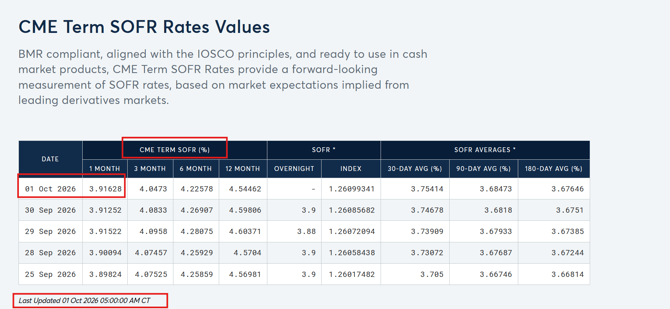
1. Get Rate from CME website
- Go to CME Website: https://www.cmegroup.com/market-data/cme-group-benchmark-administration/term-sofr.html
-
Sign into your account for the website
- Scroll or locate the table of rates for SOFR
- Find the column for monthly rates
- The correct rate is under the 1 month column and should be rounded two decimal places (use the 3rd digit to decide if you round up or down)
2. Add the SOFR rate to the Configuration Table
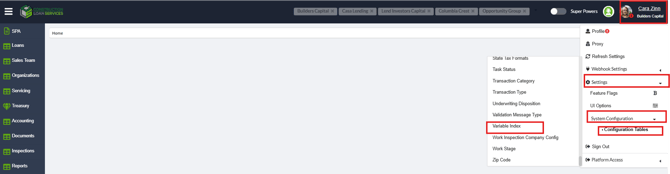
In LMS at the top right:
-
Access the menu of Configuration Tables in LMS
-
Select Variable Index
-
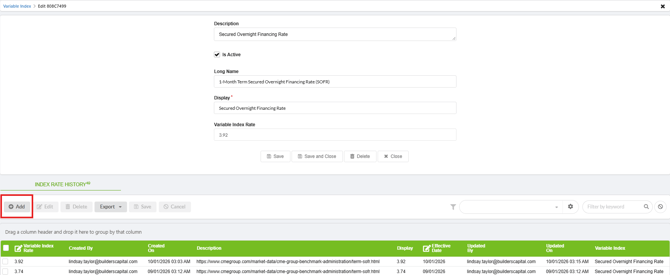
Select "Secured Overnight Financing Rate" to open details and select "Add"
-
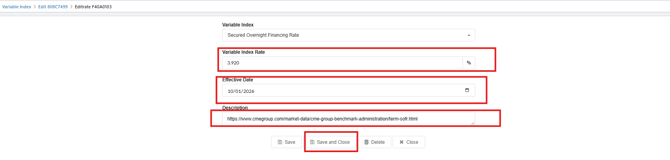
Complete the following:
-
Variable Index Rate: Enter the rate found on the CME website (rounded to two decimal points)
-
Effective Date: Always the first day of the month
-
Description: The URL to the CME website specifically for SOFR
-
-
Select Save and Close

Validation and Troubleshooting
To Create CME Account:
-
Go to CME Website: https://www.cmegroup.com/market-data/cme-group-benchmark-administration/term-sofr.html
-
Select Log In
-
Select Create Account and follow instructions