
Primary Department Supported: Processing, Operations, Accounting
Description: How to add Charges and Fees (ie. Transactions) To a loan in LMS
Super Powers Needed? - YES
Developer Support Needed? - NO
Common Situations
Most Regular Requests to add charges come in from
-
Operations/Processing: Ask us to add fees/ charges to a Lost Loan
-
Accounting: Ask for refunds to be added to loans
-
Treasury/Accounting: Will request or approve a True-Up Charge be added to a loan
Important Considerations & Best Practices
-
Before adding any transaction, you should know/have the following details:
- Transaction Details: Transaction Type & Transaction Category
- Amount: Is this a positive or negative amount
- Dates: Due Date & Effective Date (usually the same)
- Expect Pay and Add to Loan Balance Flags:
- Expect Pay: (Check box if the borrower is expected to pay this amount).
- Add to Loan Balance: (Check the box if the amount should increase the borrower's loan balance.)
- Requests coming from non-accounting team members: Loop in and get approval from accounting leadership for any requests where the effective date is not for the same day
Instructions:
To Add Loan Transactions:
From the LMS Menu:
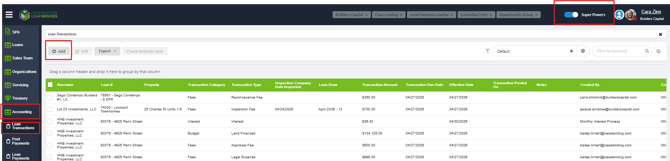
- Select Accounting
- Select Loan Transactions
- Turn on Super Powers
- Click Add
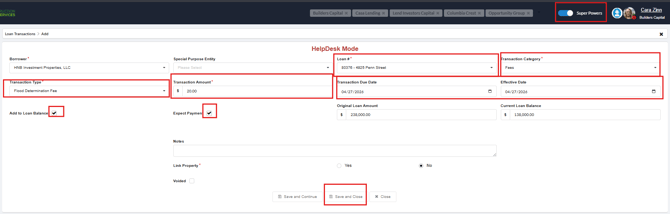
- Complete all required fields:
- Enter the Loan Number (Borrower Organization should auto-populate)
- Select the Transaction Type and Transaction Category.
- Enter the Transaction Amount.
- Input the Due Date and Effective Date (usually these dates are the same)
- Mark Expect Pay and Add to Loan Balance as appropriate.
- Click Save and Close.
Validation and Troubleshooting
- Validate the transaction by reviewing: Loan History, or The Loan Transactions Table
- Borrower Organization not populating?
- Re‑enter the Loan Number and verify the loan is active
- Send a request to the developers as needed to review the Loan’s Borrower Organization ID connections
- Added the Wrong transaction category or forgot Expect Pay Add to Loan Balance Flags?
- In the Loan History, turn on Super Powers, click into the charge and correct information
- Can’t find the exact transaction name or category requested?
- Review or confirm the available options with the ticket requester to make sure you select the correct replacement