
Primary Department Supported: Servicing / NWM Support
Super Powers Needed? NO
Developer Support Needed? NO
Context and Common Situations
Line items must be manually added to an Inspection Company Project when:
- LMS fails to import budget line items correctly, leaving the project empty (most common)
- NWM reports they cannot see an inspection order, which often indicates the project contains zero line items
- Re‑allocations or new budget lines are added and LMS does not automatically update the existing inspection project
Product Support will identify the empty inspection project, manually add line items to the project to match the budget, and then (when applicable) delete any empty inspection orders so that new orders can be sent.
Important Considerations & Best Practices
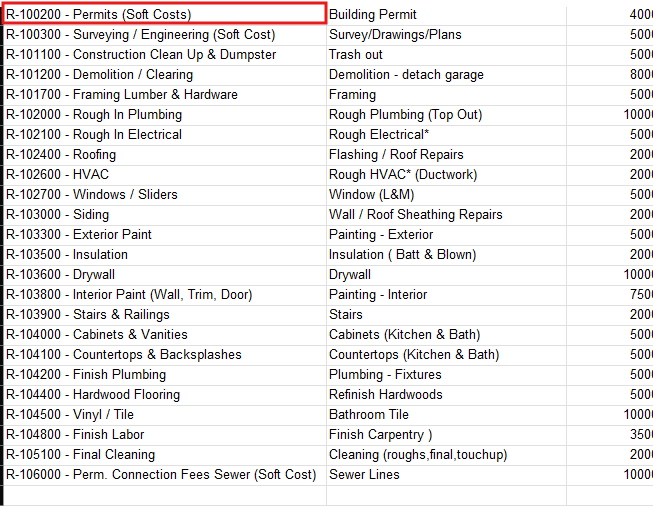
- Add the line items listed in the spreadsheet to the Project, in the order they appear
- Spot check the order of your entries to make sure they are in the same order as the budget spreadsheet
- When possible – update any additional empty projects on the loan if found (this prevents future tickets and issues)
- For larger loans with multiple empty projects and large budgets – You can send a task to the developers to import the budget line items into the project. HOWEVER – The line items will likely be out of order and will need to be edited and arranged so that each line item is in order to match the budget.
Instructions:
I: Locate the Inspection Project and Export the Property BudgetConfirm the Inspection Project Is Empty/Inaccurate
From the LMS Menu:
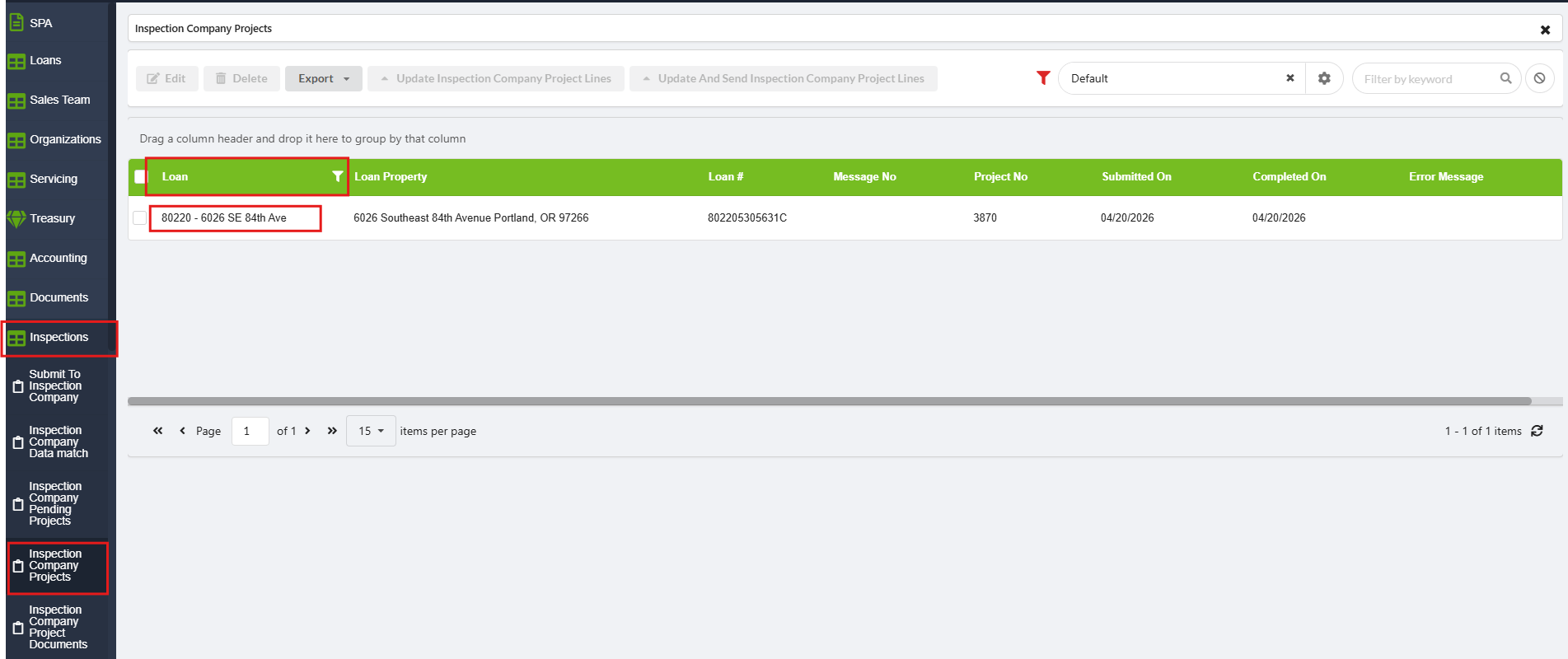
- Select Inspections → Inspection Company Projects
- Filter by Loan Number
- Filter by or locate the Property Address
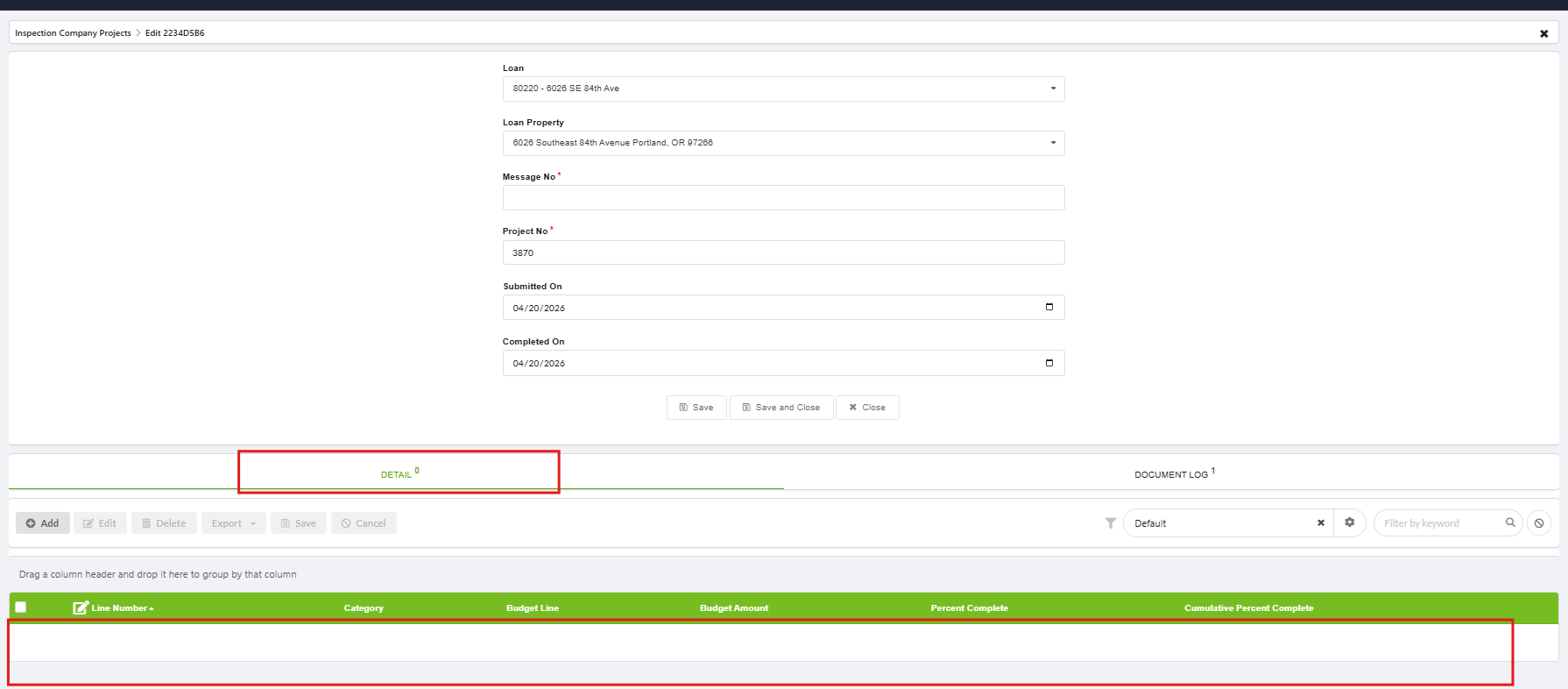
- Open the record to view details
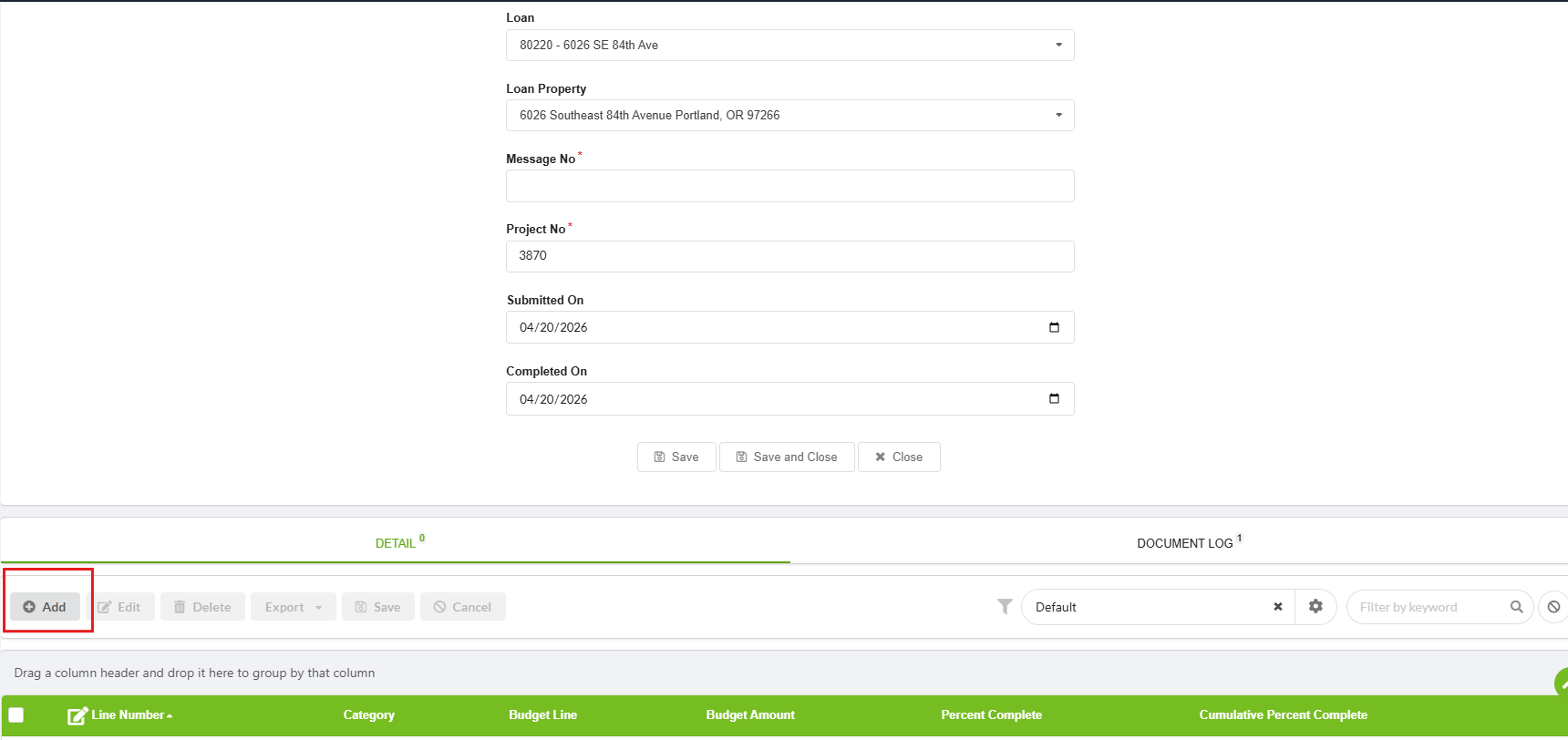
- Within the Details tab, confirm the project shows 0 line (or the incorrect number) of line items
Locate and Export the Budget Line Items
From the LMS Menu:
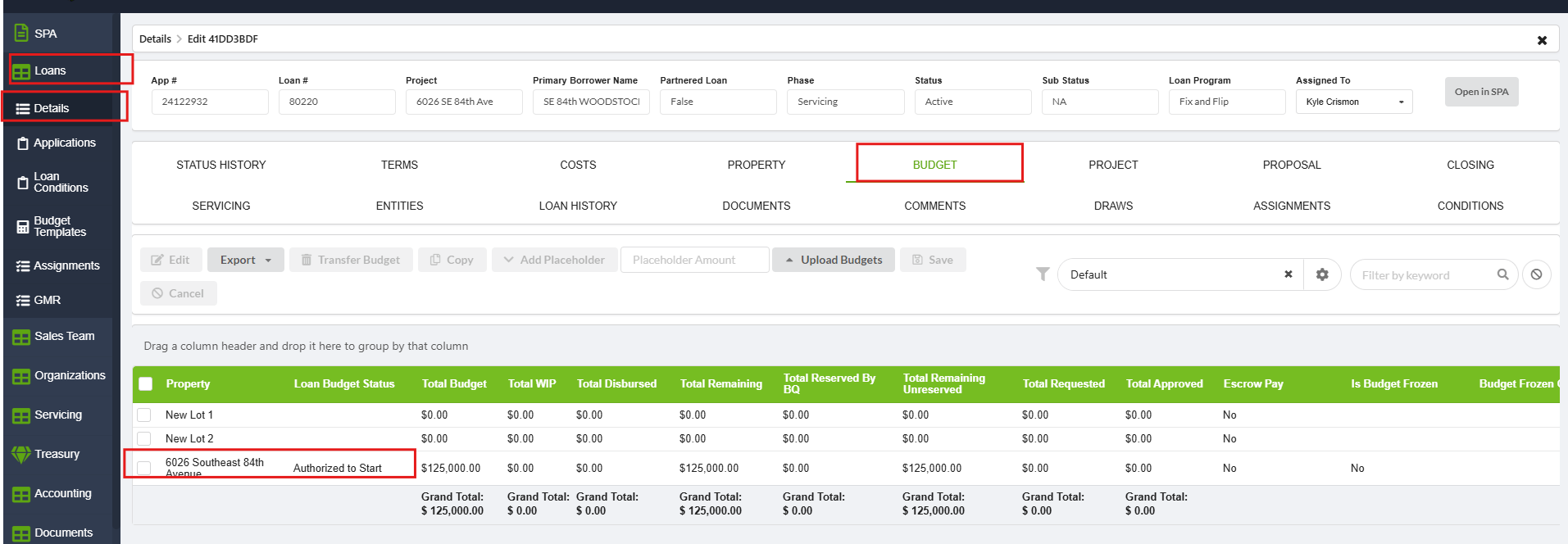
- Select Loans → Loan Details → Budget
- Locate the property name that matches the project
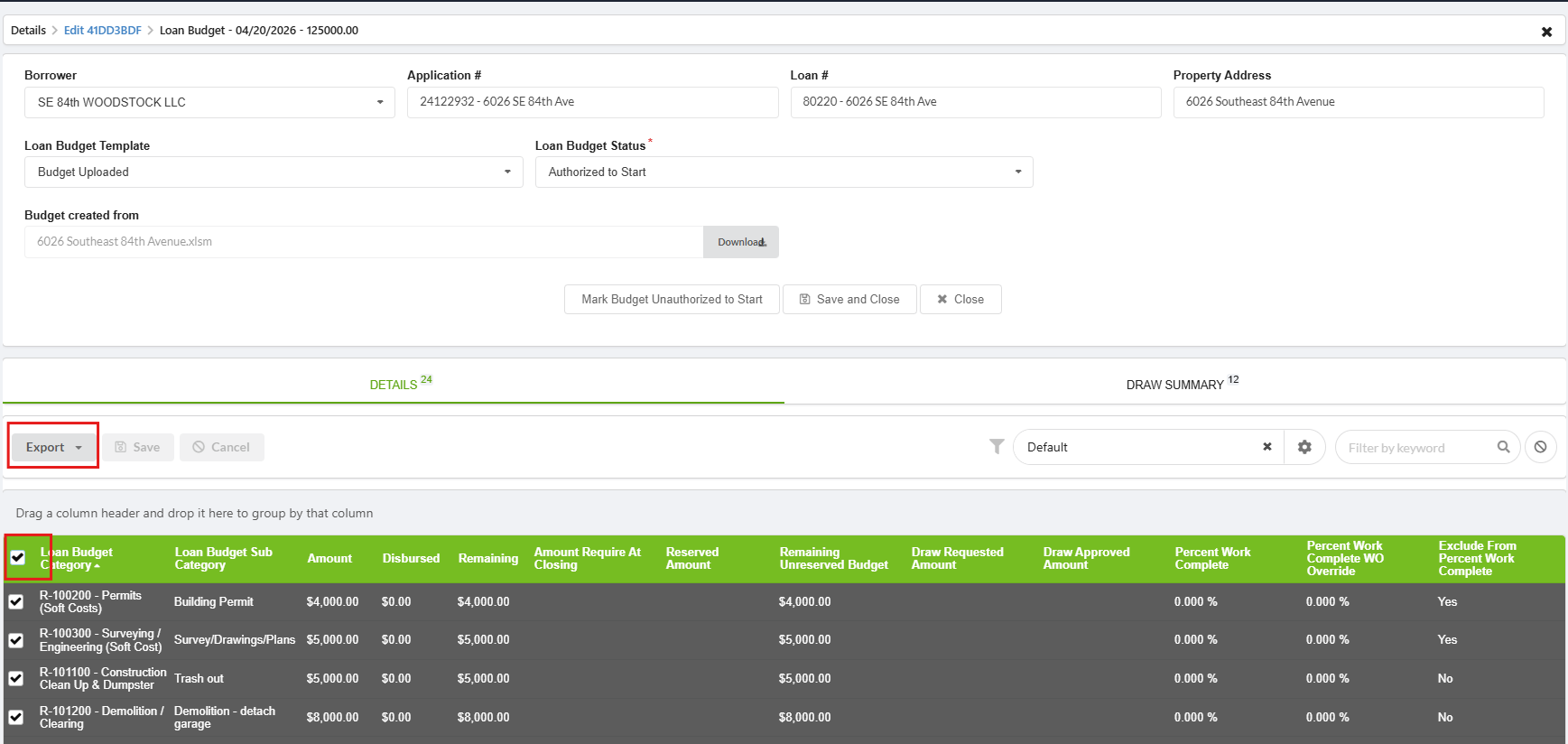
- Open the property to Details
- Select All to highlight budget line items (Expand table as needed to ensure all items are selected)
- Click Export → Export to Excel
II: Add Line Items to the Inspection Project
- Open the Inspection Project (instructions above)
- Click Add
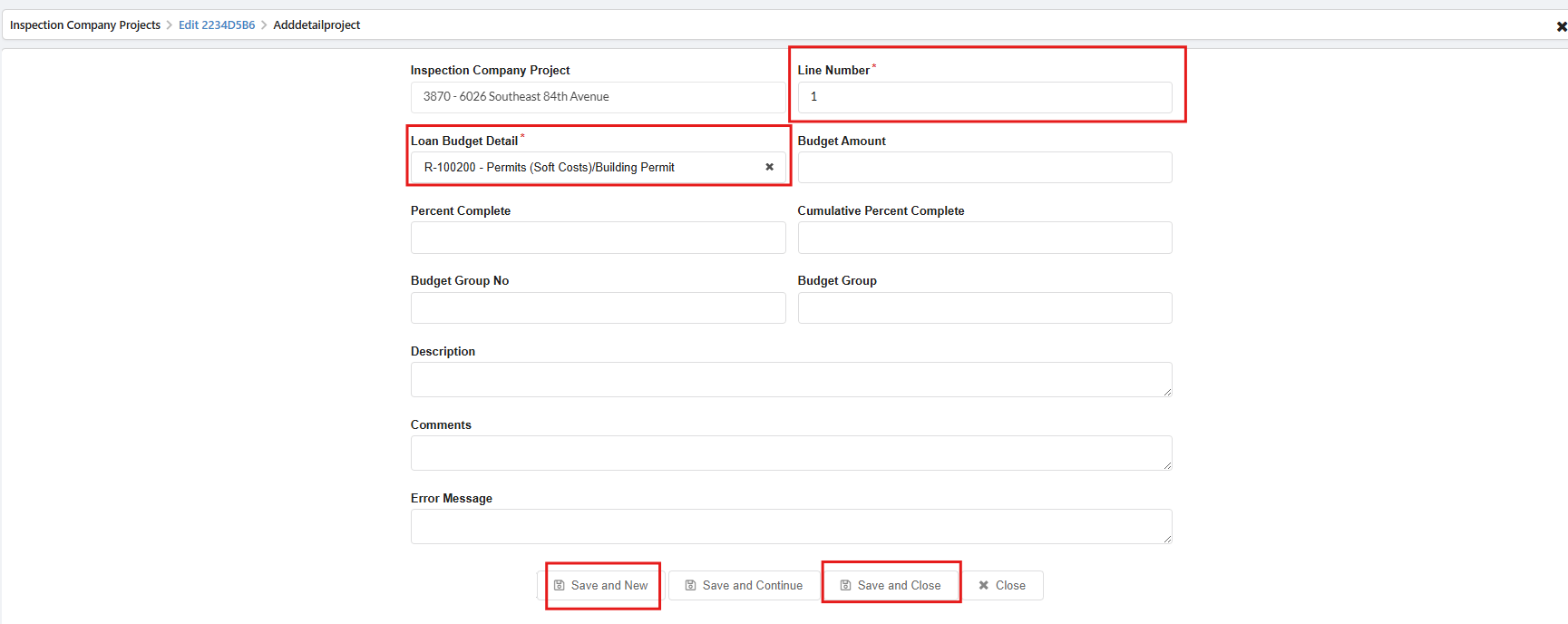
- Using the exported spreadsheet as your reference, complete:
- Line Item Description
- Line Item #
- Click Save & New to add each remaining item
- When the final item is entered, click Save & Close
Validation and Troubleshooting
- Validate that all items have been added by checking the spreadsheet vs the listed line items under the project details – Line Item description and Line Item # should match the spreadsheet
- Anything incorrect or out of order can be edited: Click into the line item and edit directly OR On the details table – click the paper pencil next to the line number to edit the order/Line Item #